WLA Features
In this article, you will find a detailed description of the current features available in the Consumer App, as well as options for retailers interested in using the AiFi Branded App for the Proof-of-Concept (PoC) process.
Getting Started
AiFi encourages retailers to integrate their own apps with AiFi to gain more autonomy in customizing, publishing new features, and fixing issues at their own pace.
The AiFi Branded App is an excellent template for retailers want to run AiFi’s Autonomous Store solution. Available on both Android and iOS, the app includes all necessary features for a complete customer journey. If additional features are required, a request for quotation will be initiated, where AiFi will assess the development effort and provide a cost estimate.
For detailed information on the branding process, please review the White Label App Branding page.
Registration and User Account Setup
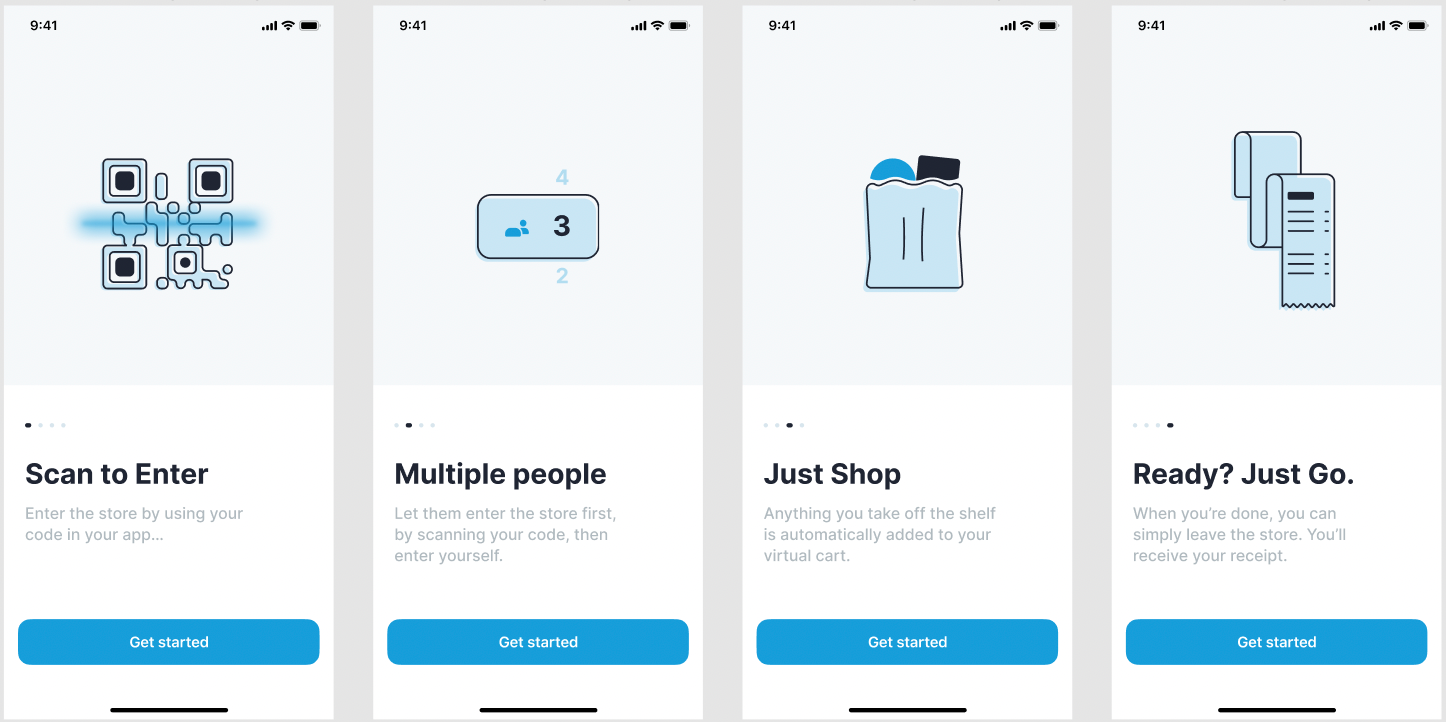
Once opening the app for the first time, the user goes through the "How it Works" Guide, which contains instructions on how to use the app in the autonomous store.
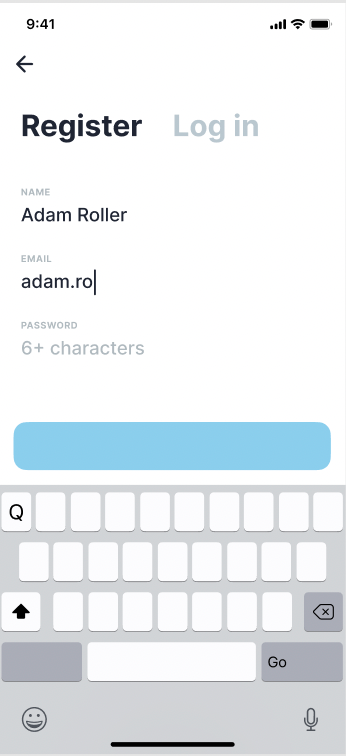
Required information for registration:
- Name and Last name
- Email address
- Password (8 or more characters)
Optional information for registration (clients should request this feature to be turned on):
- Company name
- NIP (Company Tax ID)
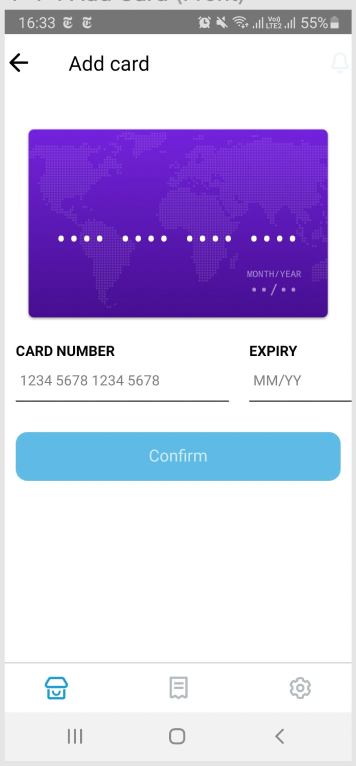
Upon registering, a pop-up will appear asking the user to accept or decline notifications. After that, the user is asked to register a credit card, which is required to enter the store. Currently, the app accepts only one card.
Login
The unique login method available is with the email and password defined during the registration.
Go Shopping
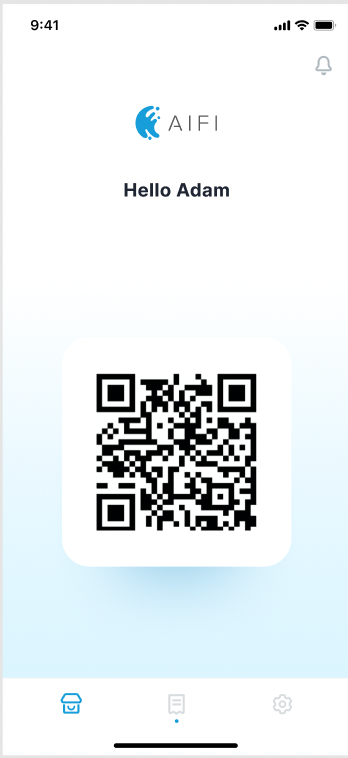
The user can use the QR code on the home screen to scan at the entrance door of the store.
Group Entry: The app owner scans the QR code and enters the store along with all the people in their party before the door closes. In this case, the system automatically groups all the people under the same party, and all the products picked up by each of them will be processed under the account of the scanned QR code.
Receipts & Payments
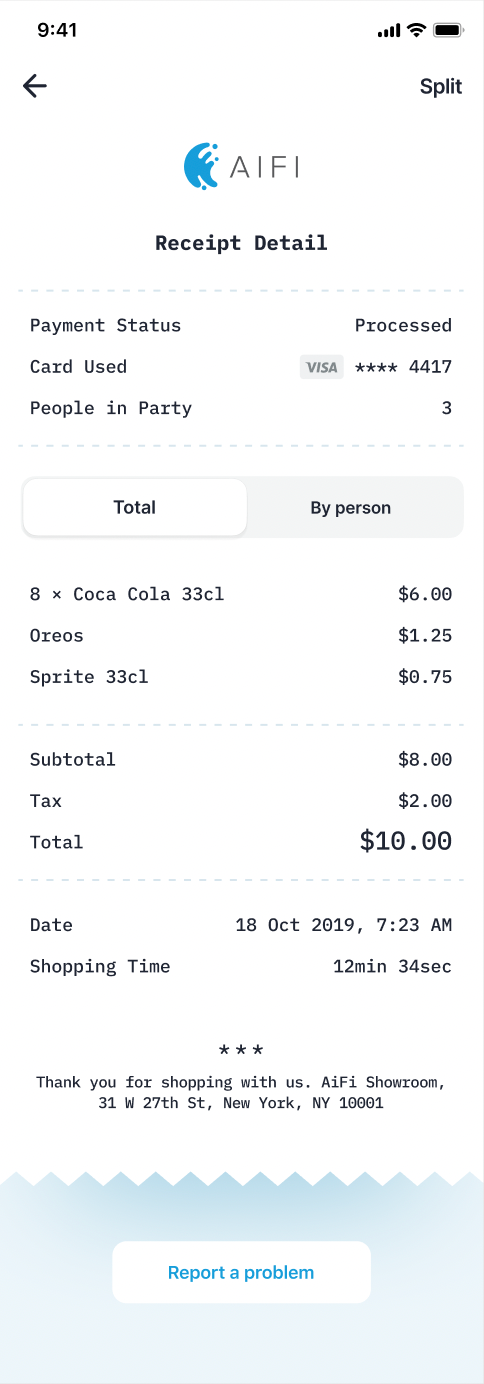
Users can access and open all past receipts linked to their account. They can see the payment status of the receipts and retry the payment if there is any failed payment due to connection or other issues.
Users can contest a receipt if any discrepancy or error is spotted within 7 days of receipt generation. They can request a review by adjusting the quantity of products, adding missing products, and attaching a message. The retailer will receive the contest in the Store Management Portal, review it accordingly, and submit the results, with or without a refundable amount.
Settings
Users can manage their card details by deleting and adding a new card.
Retailers can provide an FAQ link to be placed in the FAQ section, so users can find more information about the retailer's store and the journey. The About section allows retailers to add a link to their webpage, so users can discover more about the company. Retailers can also add the link to the Terms & Conditions section.
Retailers can add their point of contact (email, address, phone) in the Contact Us section. Users can enable or disable notifications.