Dashboard
Dashboard overview
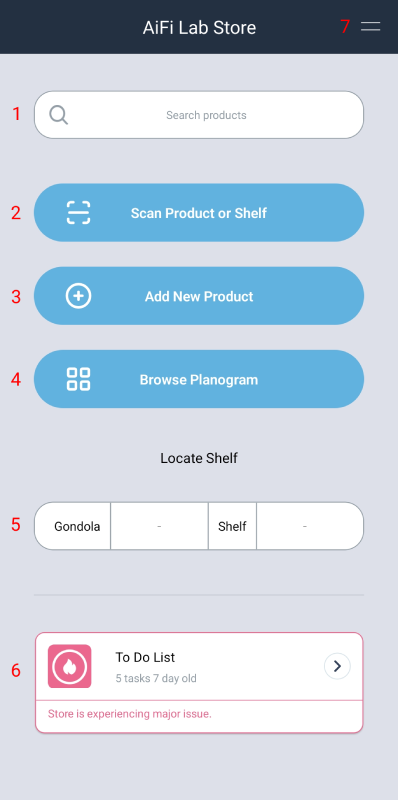
The Operations App Dashboard consists of the following elements:
- Search Bar: Search for any product catalogued in the store.
- Scan Product or Shelf Button: Use the device’s camera to scan the product barcode or shelf QR code to get to the “Product/Planogram” details.
- Add New Product: Add new product by manually providing the attributes.
- Browse Planogram: View the planogram of the store gondola by gondola.
- Manual Shelf Location: Manually input the gondola and shelf number to access the shelf’s planogram.
- To Do List: View all the pending tasks related to your store. This includes misplaced products, low inventory, and planogram check.
- Settings Menu: Use this section to change the store, edit settings or access the Ops App Guide.
Quick Scan
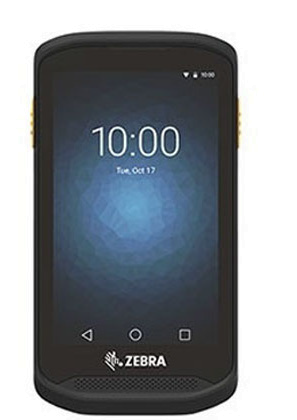
You can also scan a product’s barcode by clicking on the button located at the side of the device shown below.