Hidden menu

Hidden Menu overview

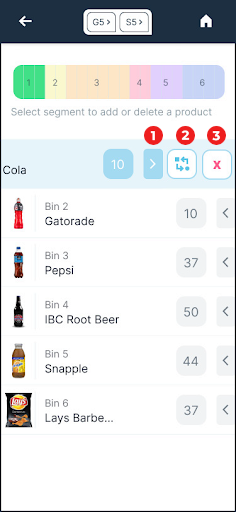
  1. Arrow Button: Tap to open/close this hidden menu.
  2. Replace Button: Tap to replace the current product with another product. Note that the Bin size remains the same.
  3. Delete Button: Tap to delete the product from that bin. This will create an "empty space" on the shelf.

PLanogram

Planogram Segments

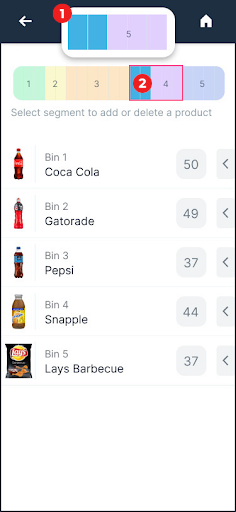
  1. Magnifier: Zoomed in section of the planogram while you are swiping to the left or right. This allows you to have more control and visibility when adjusting the bin size in the planogram.
  2. Selected Segment: The segments highlighted in blue refer to the selected segment for the new bin.
Adjust bin size

Adjust bin size

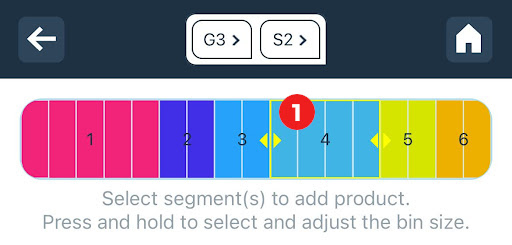
  1. Selected Bin: Click and hold on a bin to edit its size. You can increase and decrease its size by moving arrows to the left and right.

Adjust bin size