Manage products
Operations App allows you to add new products to the database and edit their details, so that you can create planograms and manage inventory. Let’s take a look on how to manage the products within the App.
Search for products
You can search for products using the app in three ways.
-
Search Bar: Type the product name in the search bar.
-
Scan Button: Tap the Blue Scan Button to open your devices camera and scan the products barcode.
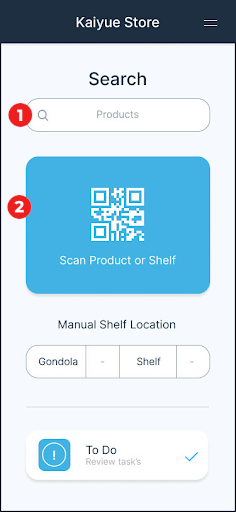
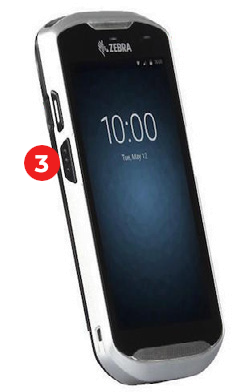
- Devices Scan Button: Press your devices scan button and scan the products barcode.
Planogram Segments
Add new products to store
AiFi Teams can help you to add the first batch of products to the system in bulk. It's also possible to integrate your inventory systems to manage the product database through API. Operations App also allows you to add single products and define their details..
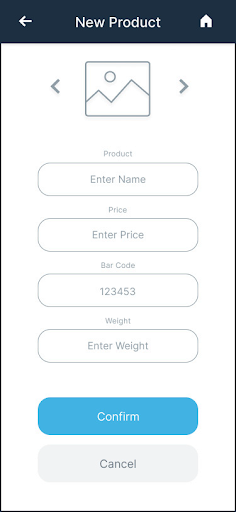
Adding products to the Operations App is very easy. All you have to do is to scan the barcode of the new product and, if the app doesn't find that barcode in the system, it will automatically open the screen to adding a new product. If the product already exists, you can update its details.
At this point, you just need to add the required information, add a product picture, name and price (the barcode should be pre-filled) - and save.
Delete or replace product
You can delete or replace a product from the shelf using two approaches.
1. Tap and drag
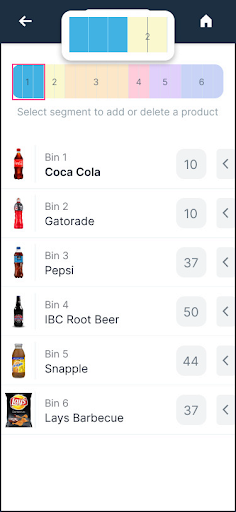
You can tap and drag the segment in the planogram that you wish to delete or replace. With this option, you can decide, for example, to remove the whole product from the shelf or just partially remove it.
When you select the desired segments a zoomed in view will appear above the planogram. This is to give you more control and visibility over the selected segments. In the planogram, as well as in the magnifier, the selected segments will be shown in blue. To end your selection just release your finger.
2. Remove entire bin
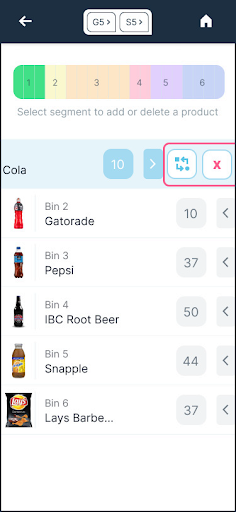
You can also remove entire bin by swiping the arrow next to it to display the hidden menu. Once the hidden menu appears, you can tap the replace or remove button (highlighted in red), to either replace or delete that bin from the shelf.
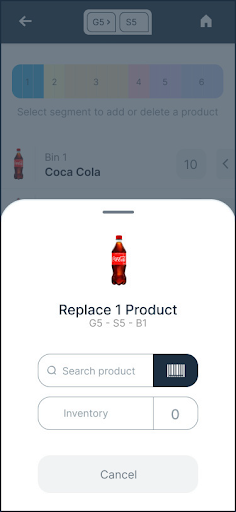
A pop up will then appear giving you the option to replace or delete the content.
If you select Delete Content, a pop up will appear to confirm your action and avoid any mistake. Select Confirm to delete.
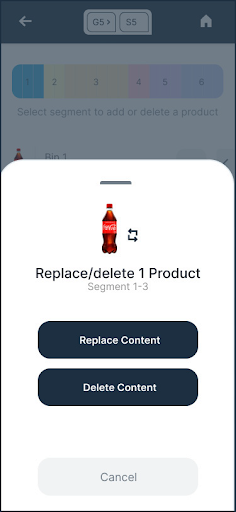
If you select Replace Content you must then search for the product that you would like to replace with and add the inventory.