Manage planograms
Here is where the fun part begins! The planogram is one of the most important parts of your autonomous store. Remember that keeping them up to date is extremely important for the accuracy of the OASIS System. Let's get into it!
Search for the shelf
To make any changes in to the planogram, you need to first locate the shelf in which you want to make those changes. Just like for the product, you also have three different ways of searching for the shelf.
-
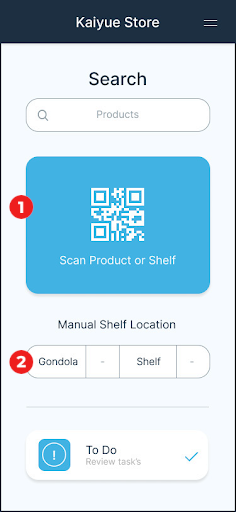
Scan Button: Tap the Blue Scan Button to open your devices camera and scan the shelf’s QR code.
-
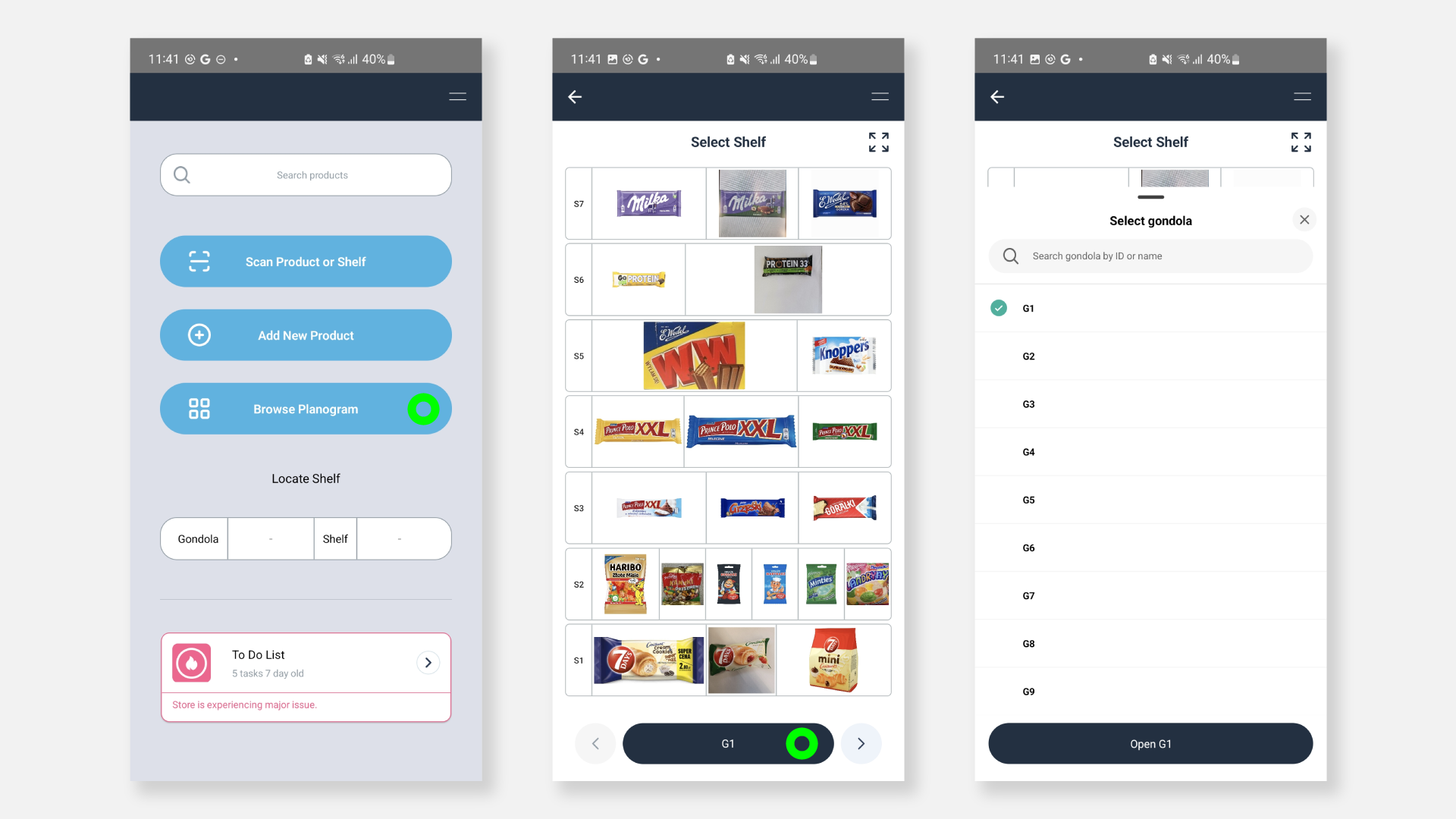
Browse Planogram: Open the shelf from the gondola's planogram view.
- Manual Shelf Location: Enter the gondola and shelf number to locate the shelf.
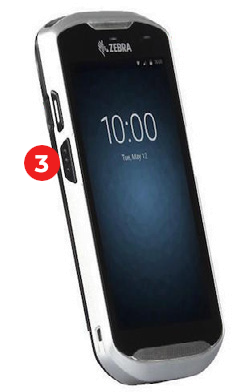
- Devices Scan Button: Press your devices scan button and scan the products barcode.
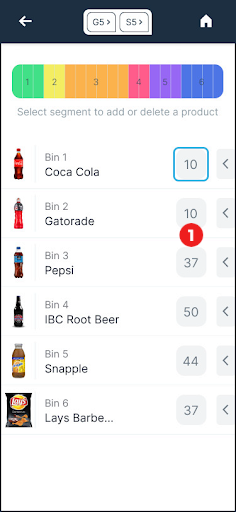
Planogram Segments
Inventory update
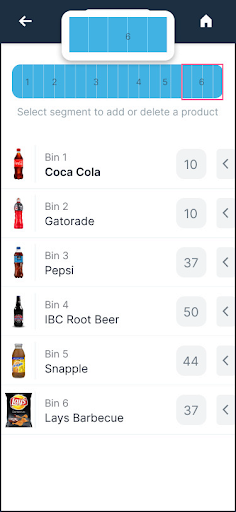
Once you are at the Planogram Details, you will visualise the list of products placed on that shelf, the inventory of each of them, the range of each of the bins on the shelf, etc. And all of it's adjustable in a matter of few clicks.
You may edit the inventory by tapping on the products inventory box highlighted in blue.
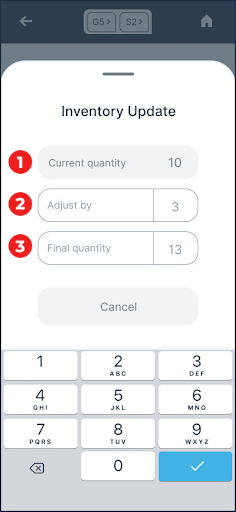
A pop up will appear in which the current inventory will be shown in grey. You just need to enter the amount you wish to add or remove in the “Adjust by” box, and the final quantity will be adjusted automatically.
If you prefer, you can also add the value directly in the Final Quantity box and the Adjust by field will be updated automatically.
Find below a short description of each of the three input boxes.
-
Current quantity: The amount of product currently in stock in that specific Bin.
-
Adjust by: Enter the amount of inventory you wish to add or remove from current quantity.
-
Final quantity: Your grand total; this takes into consideration the total of Current Quantity +/- the number of products added or removed in the Adjust by input box.
Reset the planogram
To reset a planogram of the shelf, select all the segments/bins inside the shelf.
A pop up will appear. Select Delete Content. After deleting the