Manage tasks
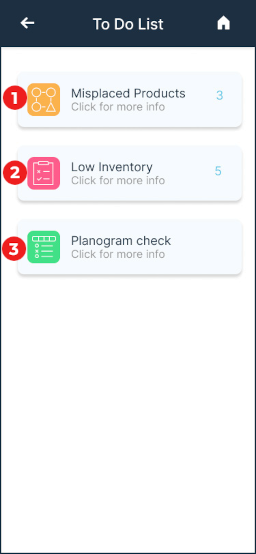
The Operations App has 3 categories of operational tasks:
-
Misplaced Products: Here you can see all the products that our system identifies as misplaced. Remember, it's crucial to have 100% of the planogram up to date, so all the products in your store are in the correct location. This directly impacts the accuracy of the OASIS system. For this reason, it's important to tackle the misplaced products tasks as soon as they appear.
-
Low Inventory: Here you can keep track of all the products that are out of stock.
-
Planogram Check: From time to time, our system will indicate or assume that there are inconsistencies between a planogram and the actual products on the shelf. Whenever this occurs, we will trigger this task in the App to physically check whether the products on that shelf match the products on the planogram.
Misplaced products
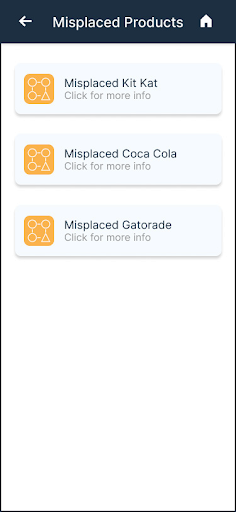
Once you click on Misplaced products in the To Do List section you will be directed to another screen with a list of misplacement tasks..
Select a task to see details and action it.
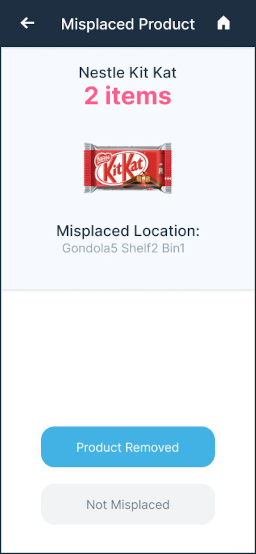
Once you open the Misplaced Products Detail page, you will be asked to physically check whether that product is in fact wrongly placed at the indicated “misplaced location”.
Should that be the case, please remove the item from the misplaced location and click on the “Removed” button.
It might also happen sometimes, that a product is perceived as misplaced by the system, however, when you check it physically, there is no wrong item on that shelf. In this case, the operator can just click on “Not Misplaced” button. We will use this information to keep on teaching our AI models.
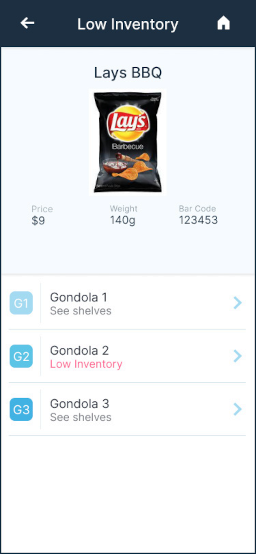
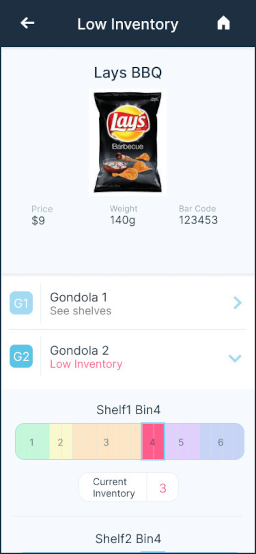
In the Low Inventory details, you will see the location of the product.
Tap on the gondola with low inventory to show the planogram and tap on the Current Inventory box and enter the amount to restock.
Once you are restocking the product, make sure to update the system with the exact number of items added during the restock.
Planogram check
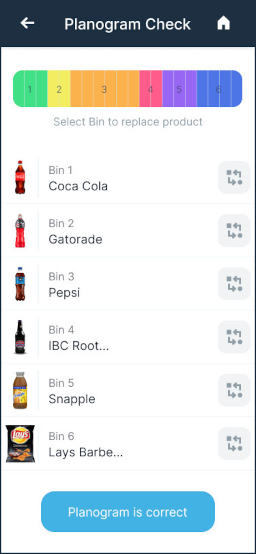
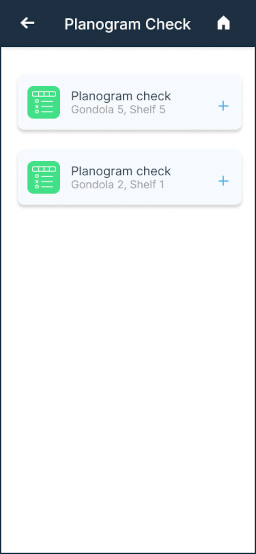
In the Planogram Check details, you will see the location of the planogram that needs to be revised.
Tap on the task to confirm that all the products are in the correct location on that shelf in the store.
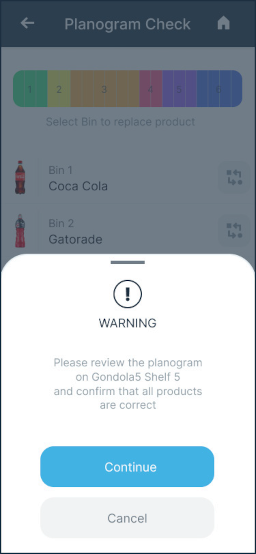
In this step, you need to physically check on the store if the location and the type of products are correctly placed on the shelf.
Should that not be the case, you can use the “Replace” button to adjust the product to the correct one.
You may also use the swiping feature over the planogram to correct the planogram accordingly.
Once all the products are on the shelf, select Planogram is correct.