Planogram overview
Gondola View
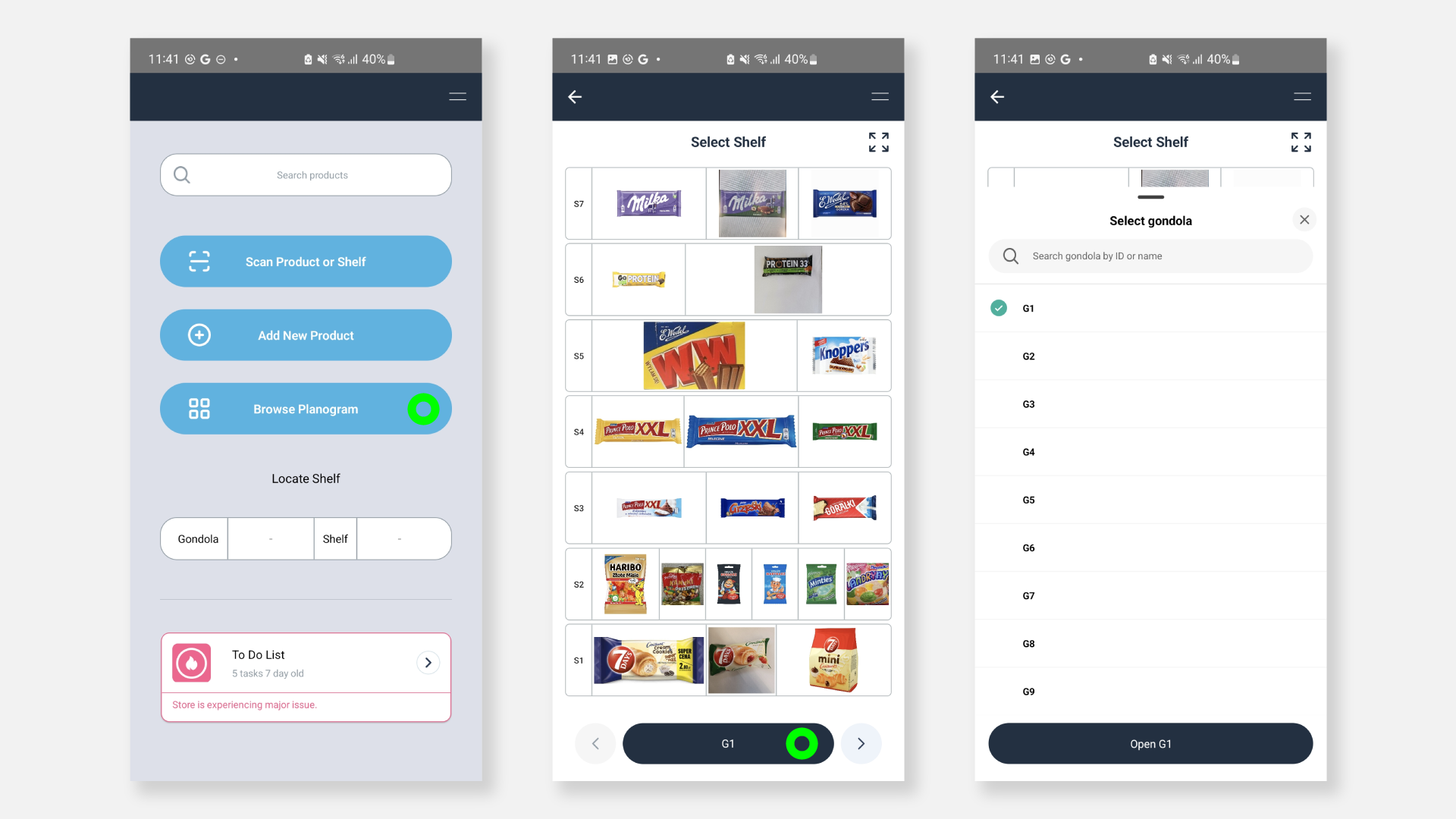
Gondola Planogram View allows to preview the planogram of the entire gondola before selecting a specific shelf.
You can access this view by clicking on the "Browse Planogram" button from the Store Dashboard.
Once opened, you can click on the gondola ID to look up specific gondola by ID or Name, or move between gondolas with arrows.
The screen allows to zoom in the planogram. The "expand" icon in the top-right corner allows to reset the view.
You can click on a specific shelf to open the Shelf View.
Shelf View
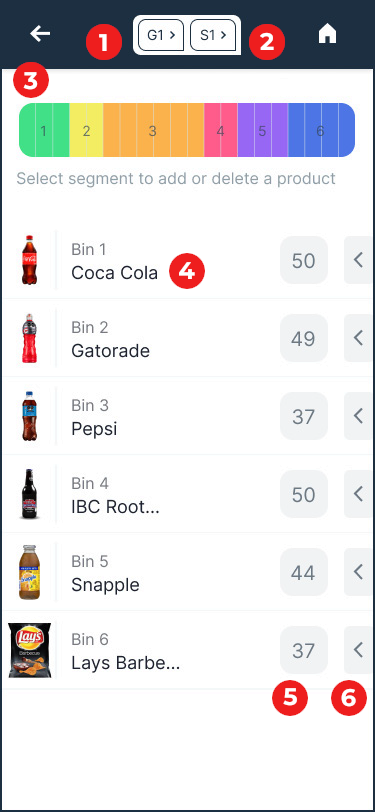
- Gondola (G) button: Indicates the gondola number of the currently visible planogram. Allows navigation to another gondola.
-
Shelf (S) button: Indicates the currently visible shelf. Allows navigation to another shelf on the selected gondola.
-
Planogram Visualization:
-
Planogram: A visual representation of the shelf to understand how much space each product occupies and in what order they're placed. The planogram is separated by bins, and each bin has its segments.
-
Bin: Designated space on the planogram for one specific product. Each bin has a number and is represented by a different colour for better visualization. Bins consist of segments that determine how much space on a shelf the product occupies.
-
Segments: Each shelf divides into a certain number of segments, based on the width of the shelf. For every 5cm of the shelf, a new segment is added. The number of selected segments for the bin should determine how much space the product takes up on the actual shelf (each segment is about 5cm wide). Ensure that the dimensions of each product bin in the Ops App match as closely as possible to the real setup in the store. For example, there are more rows of Pepsi (orange) lined up on the shelf as opposed to fewer rows of Gatorade (yellow). :::info You must fill in the entire shelf and allocate segments. Avoid blank spaces. :::
-
How to use: You can select one or more segments of the shelf to delete or replace the products assigned. You can also change the size of the bin by clicking on the bin and holding it until a yellow border appears around it. Use arrows to decrease or increase the bin size to the left or right.
-
-
Product Name: The bin number corresponds to the location of the product on the shelf. Here you can also see the Product Name and its image.
-
Product Inventory: Indicates the current inventory of the product in that bin. Tap to modify it.
-
Hidden Menu: Tap or swipe on the arrow (to the left) to show the hidden menu of actions for that bin. Find more details in the “Hidden Product Menu” section.