Managing Products
The Operations App lets you add new products to the database and edit existing ones — making it easy to create planograms and manage inventory. Let’s walk through how to manage products within the app.
Search for products
You can search for products in the app in three different ways:
- Search Bar – Type the product name manually.
- Blue Scan Button – Tap to open your device’s camera and scan a barcode.
- Device Scan Button – Press your device’s physical scan button to scan a barcode.
Whenever you see the scan icon in the app, you can use the device scanner directly.
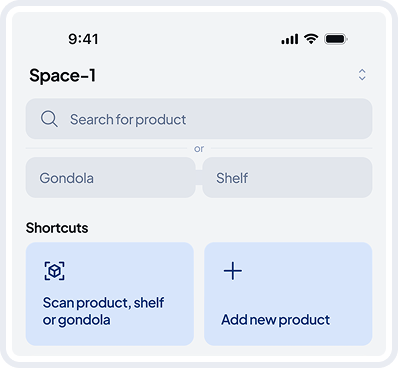
Adding new products to the store
AiFi Teams can help you upload your first batch of products in bulk. You can also integrate your inventory system via API to manage the product database automatically.
In the app, adding individual products is simple:
- Scan the product’s barcode – Type the product name manually.
- If it’s not in the system, a product creation screen will appear.
- If it already exists, you’ll be able to update its details.
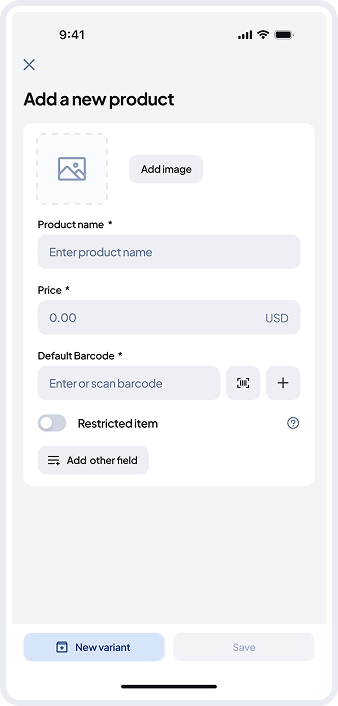
- Fill in the required information.
- Add the product name, image, and price. The barcode will be pre-filled.
- Save the product — and you’re done.
Variants
What's a Variant?
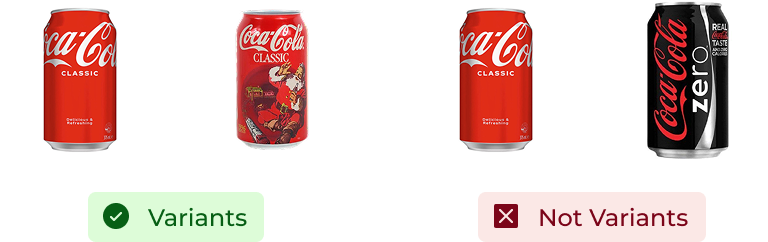
Variants are the same product with slight visual differences — like seasonal packaging, different labels, or special editions. They’re grouped together to help match what’s on the shelf to a known product.
When are variants treated as separate products?
If product flavours have different prices, we treat them as separate, easily recognizable products — not variants.
Adding new variants
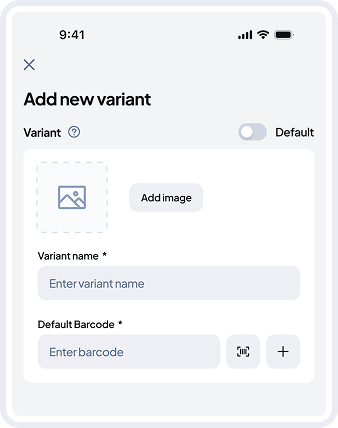
To add a new variant, tap the “New Variant” button at the bottom of the form. You’ll see a reminder explaining what variants are each time — until you choose to opt out.
Since adding variants takes more time, we recommend using them only for recurring cases in your space. For rare or one-off differences, it’s better to create separate products.
You won’t find a price field in the variant form—pricing is inherited from the default variant.
You can mark any variant as the default, and only the name of that default variant will appear on receipts.
You can add, edit, or delete as many variants as needed.