Order Details
Overview
This section provides a comprehensive guide on managing orders within the AiFi Console, including accessing order details, handling contested orders, and managing unpaid orders.
Order details
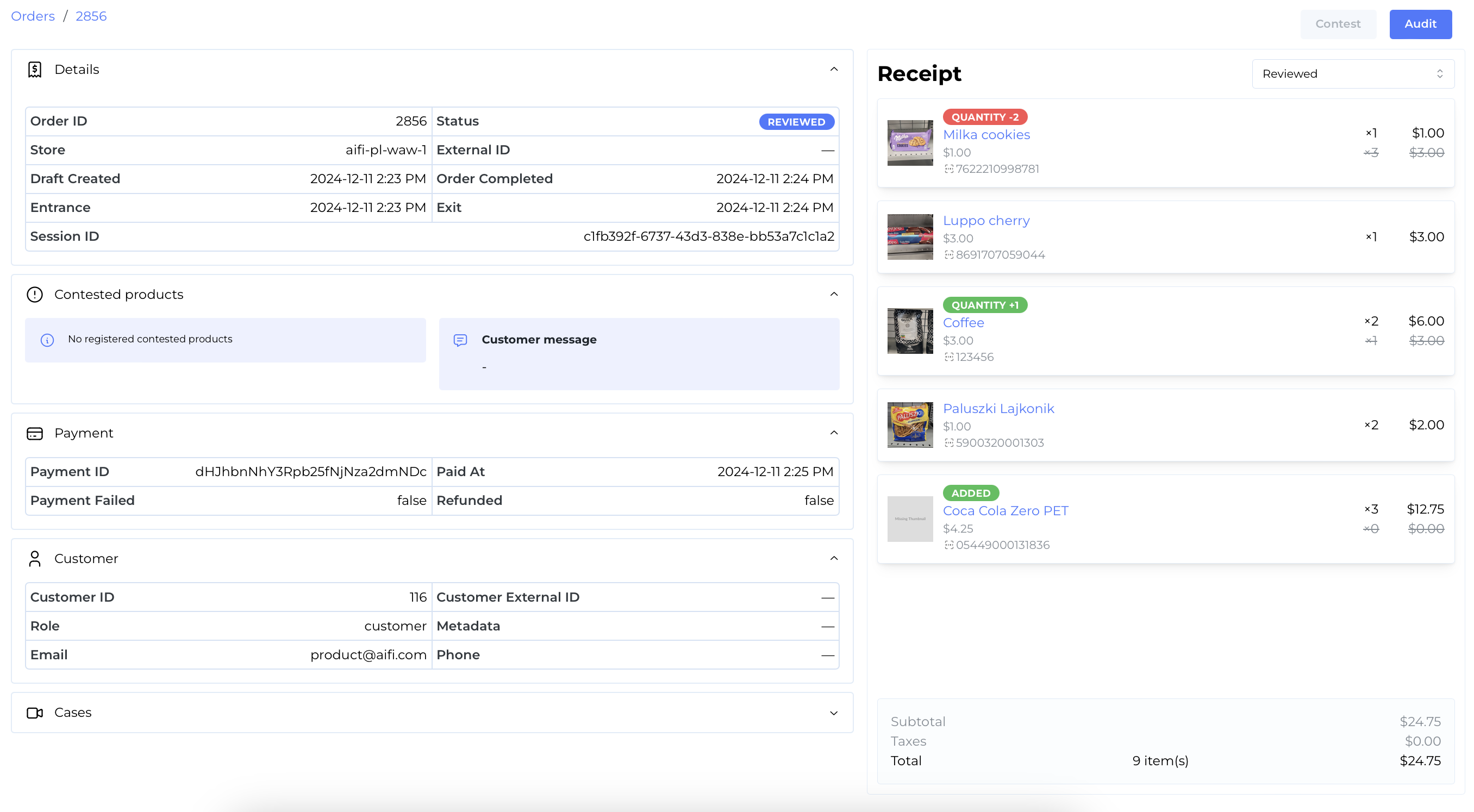
Click on an individual order to view its details. The page consists of general information about the order, payment and customer, as well as receipt summary. Upon auditing the order, you can also find here the video cases that allow to review the shopping session. If a customer contests the receipt, the contested products and the customer's message will be displayed here as well.
Payment details
Under Payment section you can find the Payment ID reference, allowing to search transactions in the payment provider's system, transaction time, as well as information if transaction was refunded.
Customer details
Under Customer section you can find information about the person that made the purchase. It's available only if customer registers their email or phone (through Customer App, WebReceipt or Entry App) or we received customer metadata through integration with Retailer's system. This information is hidden unless your organization administrator grants you role to View Customer PII.
If you'd like to obtain that role for your organization, please contact your administrator or reach out to AiFi Support.
Please note that the customer data can't be accessed by AiFi Employees. To review our Privacy Statement and policies around collecting, using, and protecting personal data, please visit our Trust Center.
Cases list
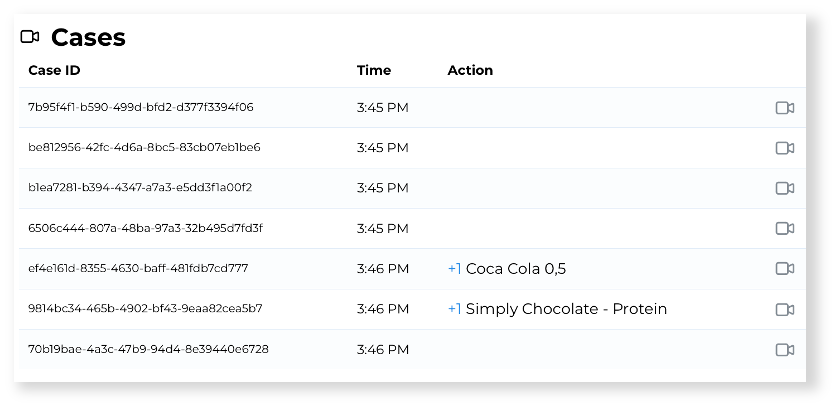
The cases list appears under the order details when you select Audit to review the shopping session. The recordings are also available when you, or the shopper, contest the order. Click on each case to view its video recording. If there are no videos available, they might have already expired due to the video retention policy.
Receipt summary
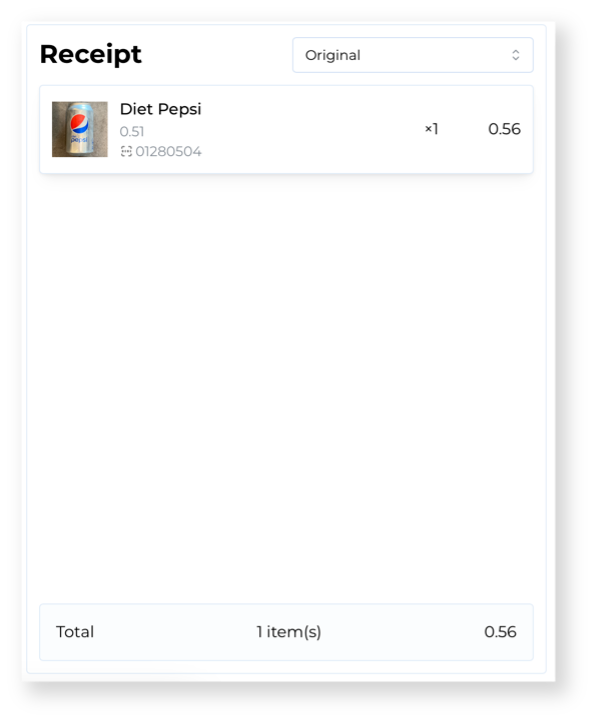
On the right-hand side of the page, you'll find the details of the receipt issued to the customer. This includes product names, barcodes, quantities, line-item prices, and the total price.
Audit
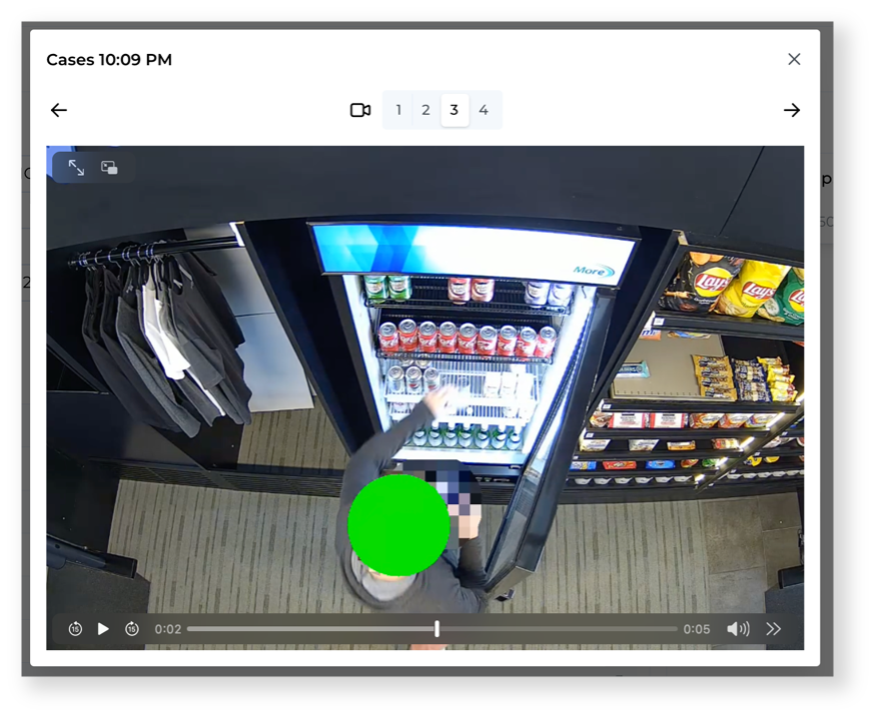
You can audit the receipt and review the video footage without changing the receipt status or details.
Select the Audit button to open each video recording and review items taken by the customer.
Contested orders
Depending on your receipt journey configuration, customers can contest the receipts they receive and specify potential errors with recognized products. You can find such orders by the Contested status on the order list.

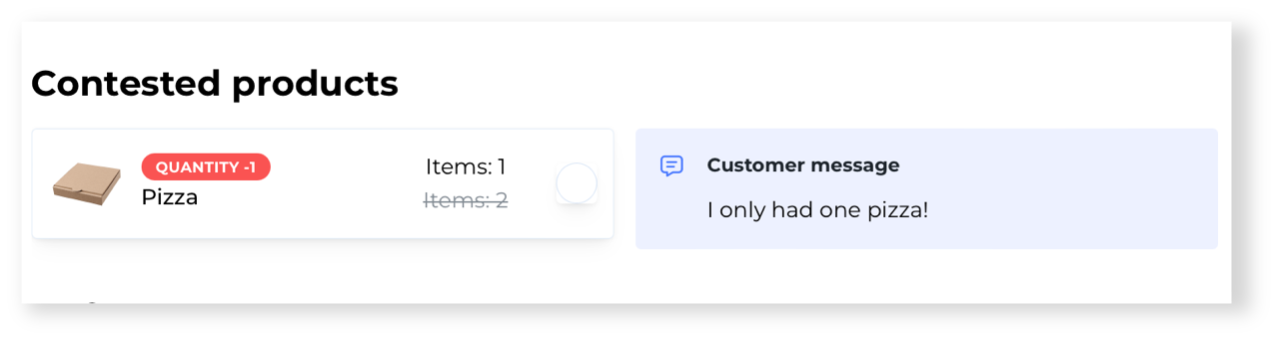
In the Order Details, you can view the contested products and the customer message.
If the customer submits a complaint through other channels, and you'd like to contest the order yourself, you can do that by selecting the "Contest" button in the top right corner of the order details page. Use this option only for orders you wish to edit or refund, as it changes the order status, and once the contest is submitted, the changes are sent to the customer.
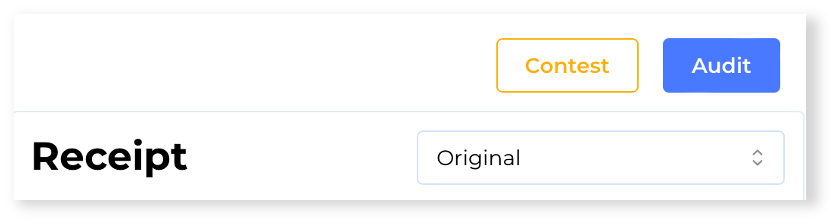
You can switch between the original and contested version of the receipt to revise it.
Revising the contested order
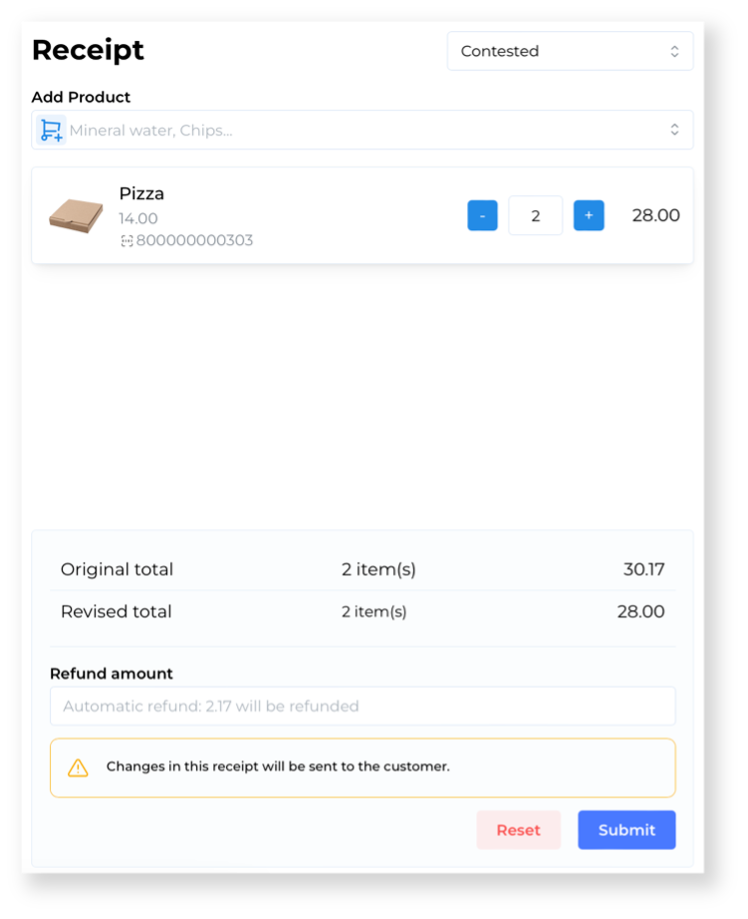
The contested view of the receipt allows you to:
- Modify the quantity of products recognized by the AiFi system in the original receipt.
- Search for another product to add it to the revised receipt.
- Set the refund amount. If it isn't set, it will be calculated automatically.
Review the video recordings of the shopping session, revise the details of the receipt if needed, and click on the "Submit" button to send the updated receipt to the customer.
- Currently, it's not possible to cancel the receipt contest. If no changes are needed, simply submit the receipt without any updates.
- The customer won't be notified by AiFi that their receipt is revised. If a refund was issued, they should receive notification from their bank. We're working on adding additional messaging from our platform.
- Refunds may take up to 3–5 business days, depending on the customer’s bank.
- At this moment, it's not possible to overcharge the customer if the revised receipt has a higher price than the original one. We're working on a solution to provide this capability in the future.
Unpaid orders
It might happen that AiFi was unable to capture the payment from the customer. Our system tries to charge the payment method up to 7 times, after which, if the attempts are unsuccessful, the order status changes to unpaid. You can find such orders by the Unpaid status on the order list.
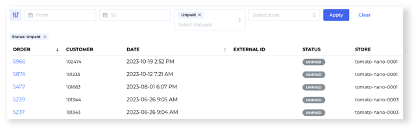
To investigate the root cause behind the unpaid order, open the details of the order to get the payment ID generated by the payment service provider for the order.
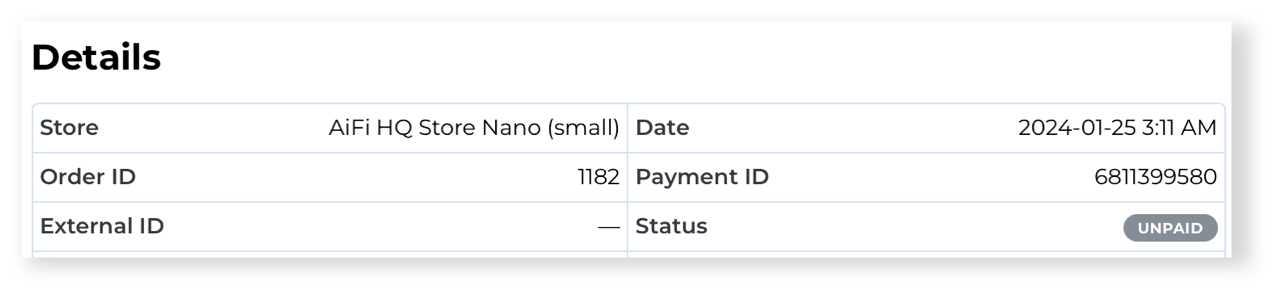
Use this payment ID to find the payment details and the decline reason at the merchant portal of your payment service provider (such as Adyen, Shift4, Braintree, or Stripe). Depending on the payment service provider, you may be able to recapture the payment by sending a payment link or inputting a new payment method for the customer.
- Currently, it's not possible to capture the unpaid orders through AiFi Console. This must be performed through the payment service provider’s portal.
- Customers with unpaid orders are by default blocked from entering the store again. If you wish to unblock specific customers, please contact our AiFi Support to complete this. We're working on adding this feature in the AiFi Console in the near future.
- Currently, it's not possible to manually cancel the orders in AiFi Console or mark them as paid. Please contact our AiFi Support to complete this. We're working on adding this feature in the AiFi Console in the near future.