Bottle Deposits
AiFi Commerce - Deposit Fees
Bottle deposits are mandated in many European countries, including Germany (Pfands) and the United Kingdom, as well as in several U.S. states. If your store sells beverages in bottles, cans, or other containers, you must ensure compliance with these regulations.
AiFi’s Commerce platform includes a free feature to help manage bottle deposits, applying them to customer receipts and ensuring proper fee collection.
How Deposits Work
AiFi’s bottle deposit feature functions as follows:
- When a customer purchases a product that requires a bottle deposit, AiFi automatically adds the designated deposit amount to their cart.
- The AiFi Console allows you to configure a bottle deposit and associate it with specific products. Each time one of these products is added to the cart, the deposit is automatically included.
- On the receipt, the purchased product’s price and the separate bottle deposit amount are both shown.
- Bottle deposits aren't taxable.
- Bottle deposits are considered separate from standard products:
- They don't affect reported revenue or item counts in AC Metrics.
- Deposits are tracked independently from products in AC Reports.
- Deposits are recorded separately from products in the OASIS API.
- Customers can see both individual deposit amounts per product and the total deposit amount on their receipt.
- If a receipt with deposit-eligible products is adjusted or contested, and an item is removed, both the product value and the deposit amount are refunded.
Enabling Deposits
To enable bottle deposits, please contact your Account Manager or AiFi Support. AiFi will activate this feature as a cloud add-on within your retailer’s cluster.
This feature is available from OASIS version 5.4.14 onward. If your stores use an older version, AiFi will schedule an upgrade to the latest release.
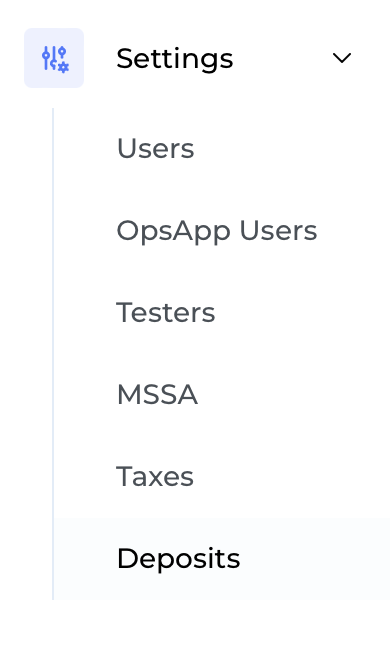
Once enabled, you will see a new Deposits section in the AiFi Console under Settings:
Configuring Deposits
Follow these steps to set up bottle deposits:
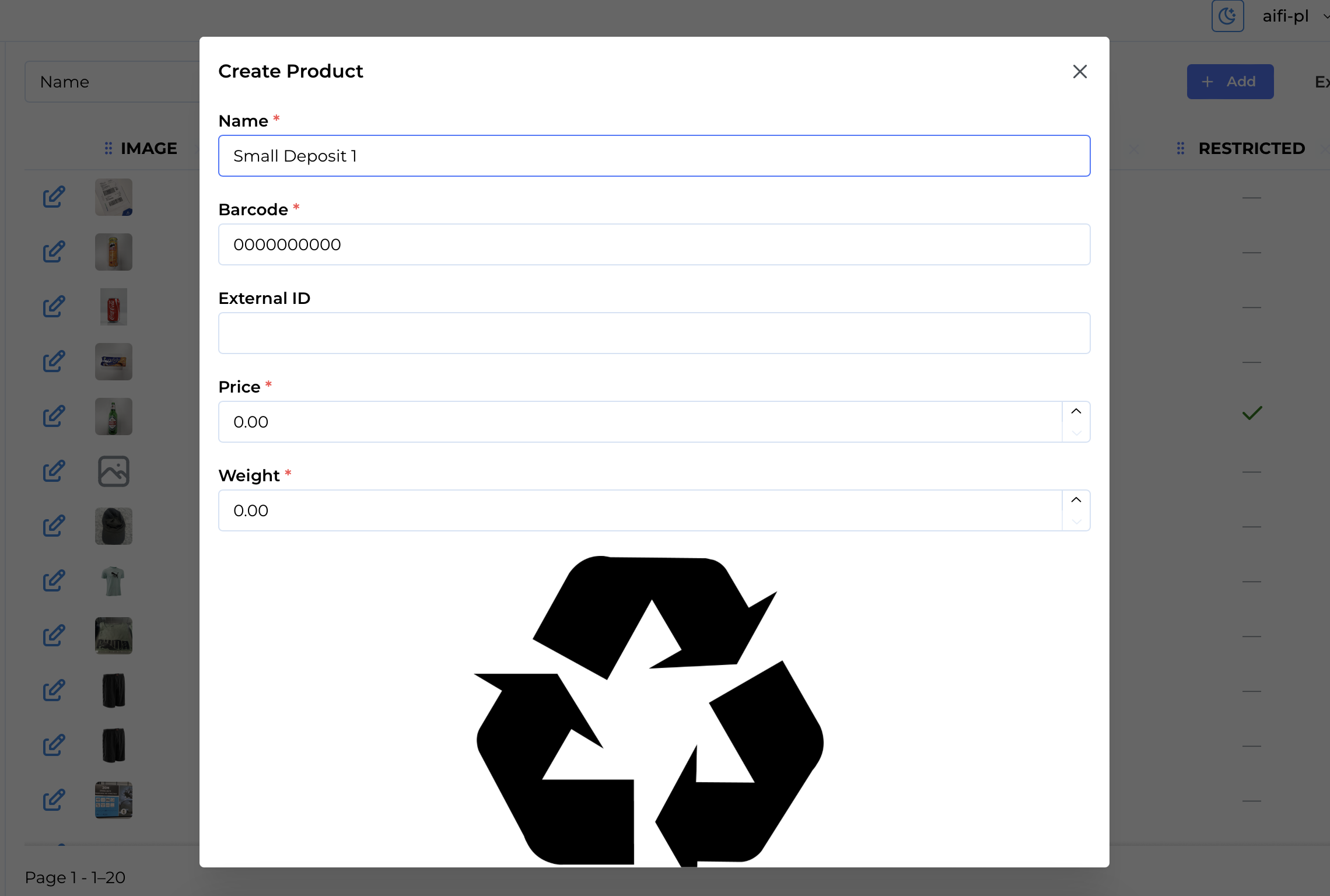
1. Create a Placeholder Product for the Deposit
In AiFi Console > Products, create a placeholder product to serve as the deposit item.
This placeholder product is only a setup requirement. Its name, image, and price won't be visible to customers.
2. Set Up a New Deposit in Settings
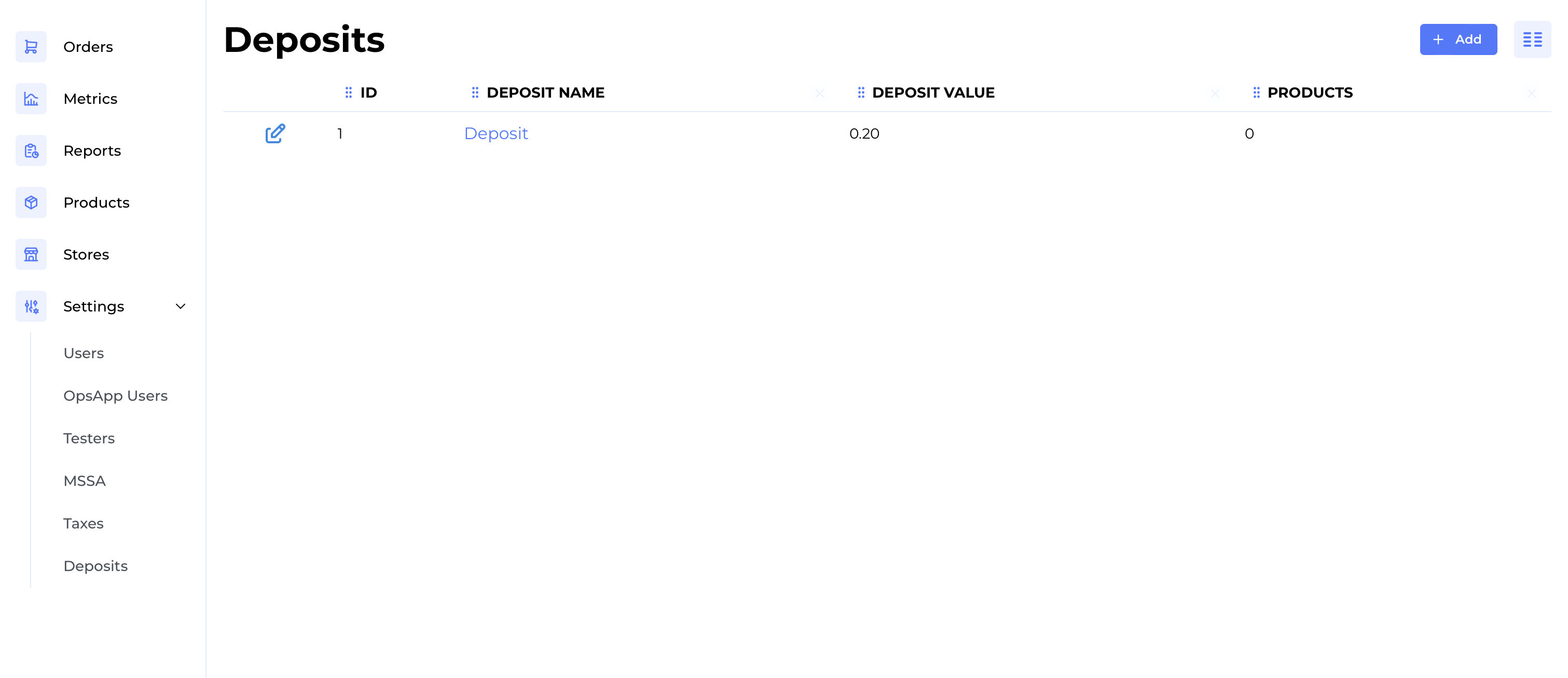
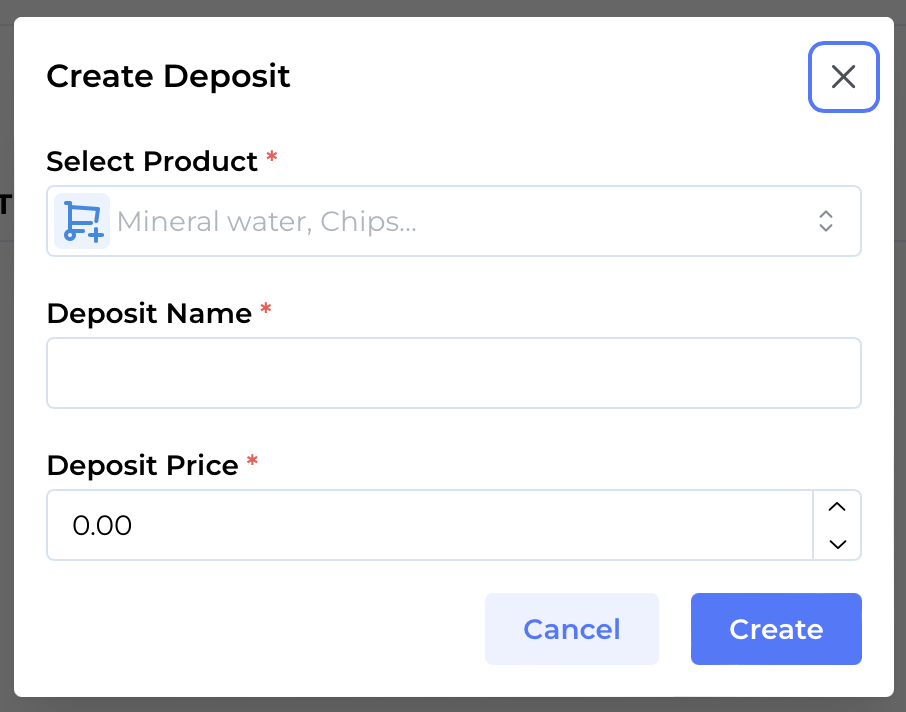
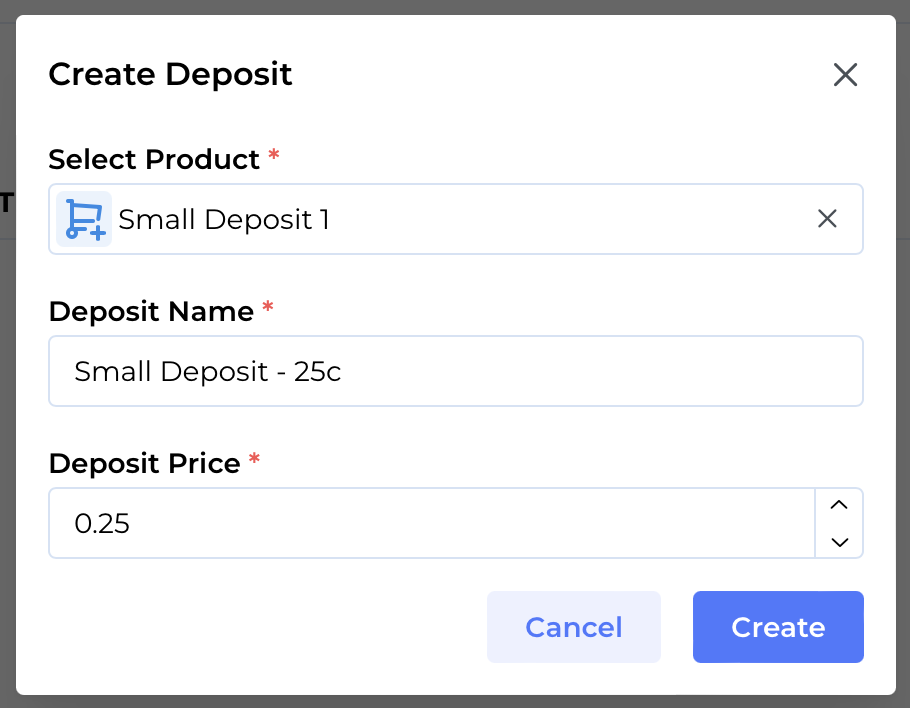
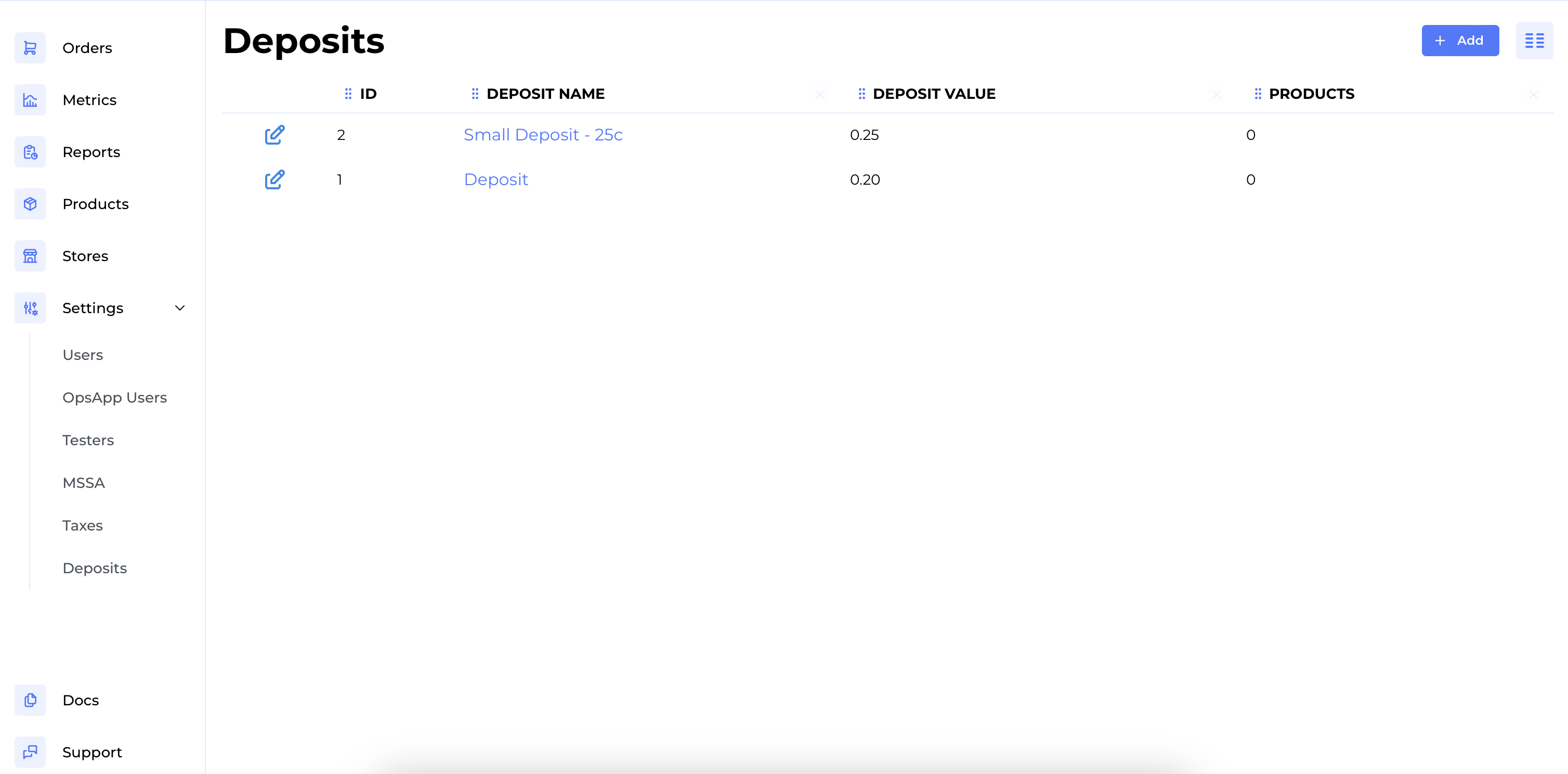
In AiFi Console > Settings > Deposits, create a new deposit entry. Select the placeholder product, provide a deposit name and amount, and save. The deposit will appear in the list:
3. Assign Products to the Deposit
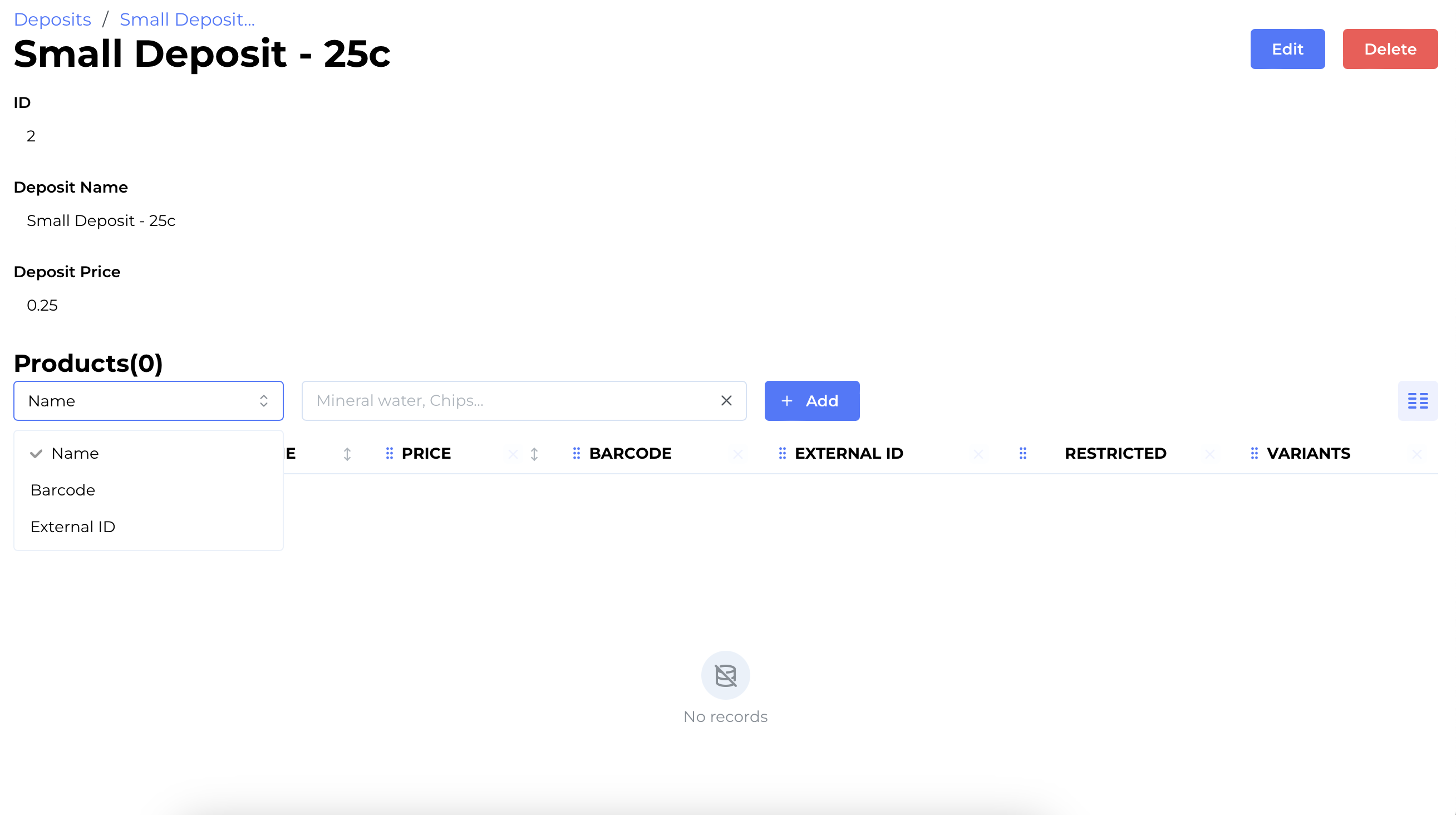
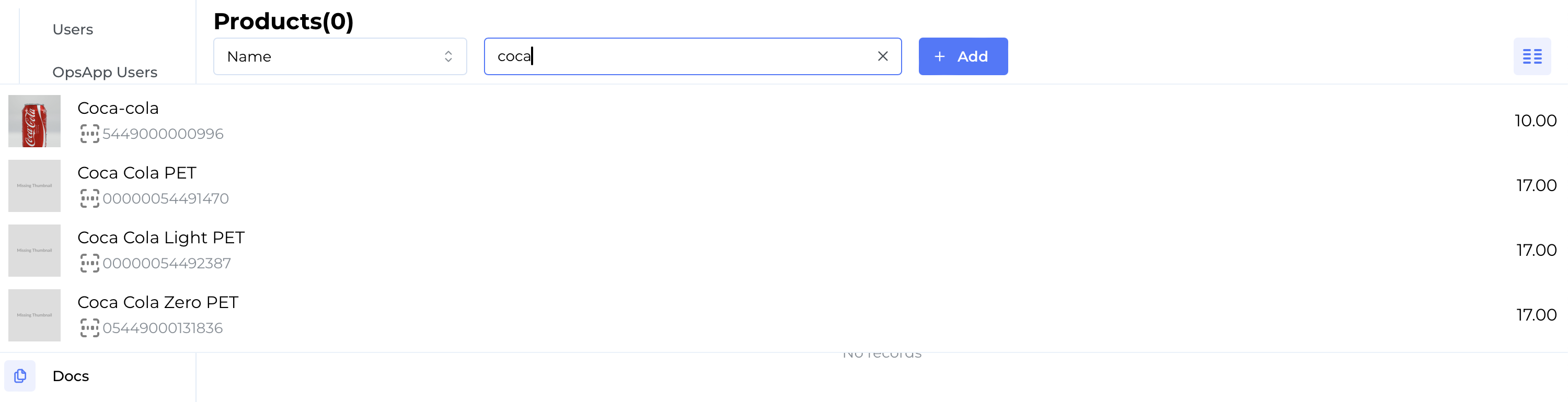
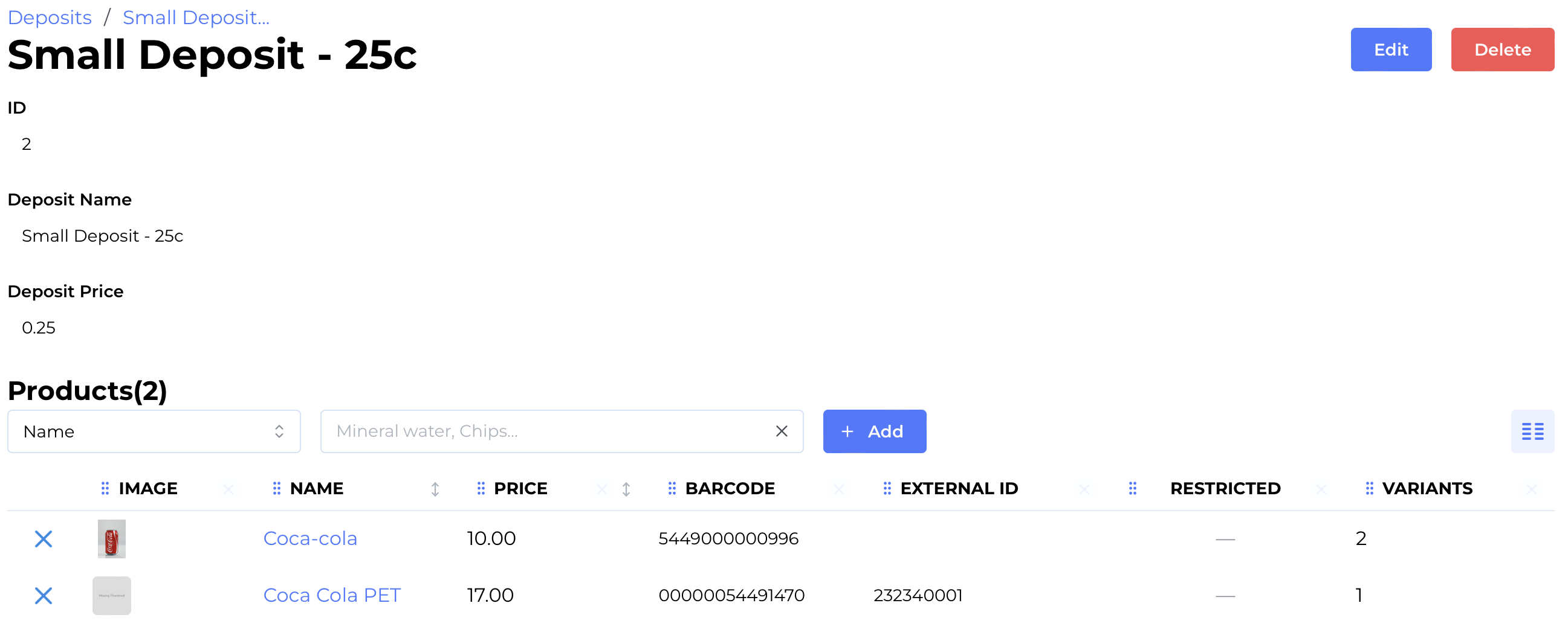
In AiFi Console > Settings > Deposits, open the deposit details to assign applicable products. Search by name, barcode, or external ID to add products that require a deposit fee:
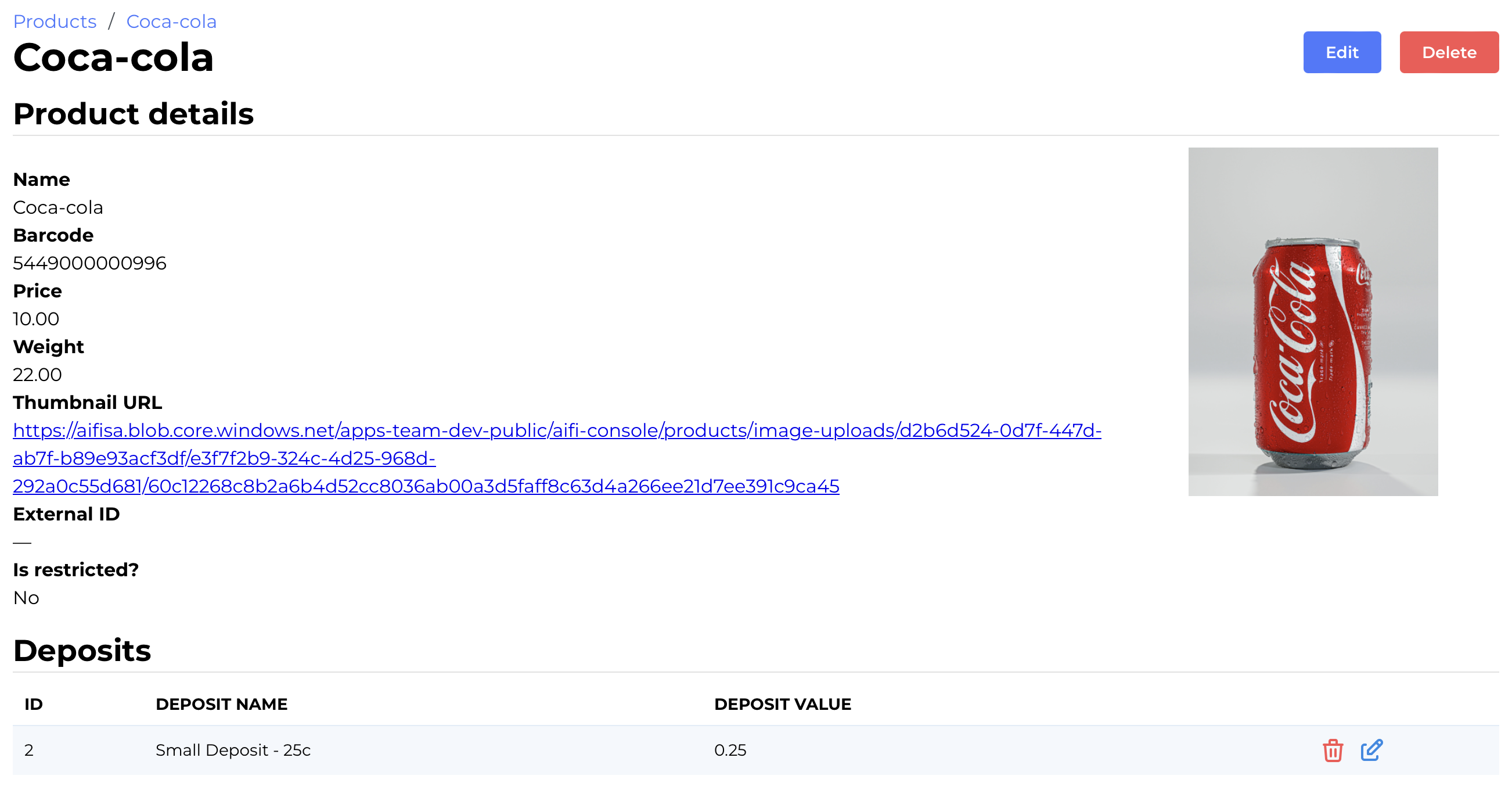
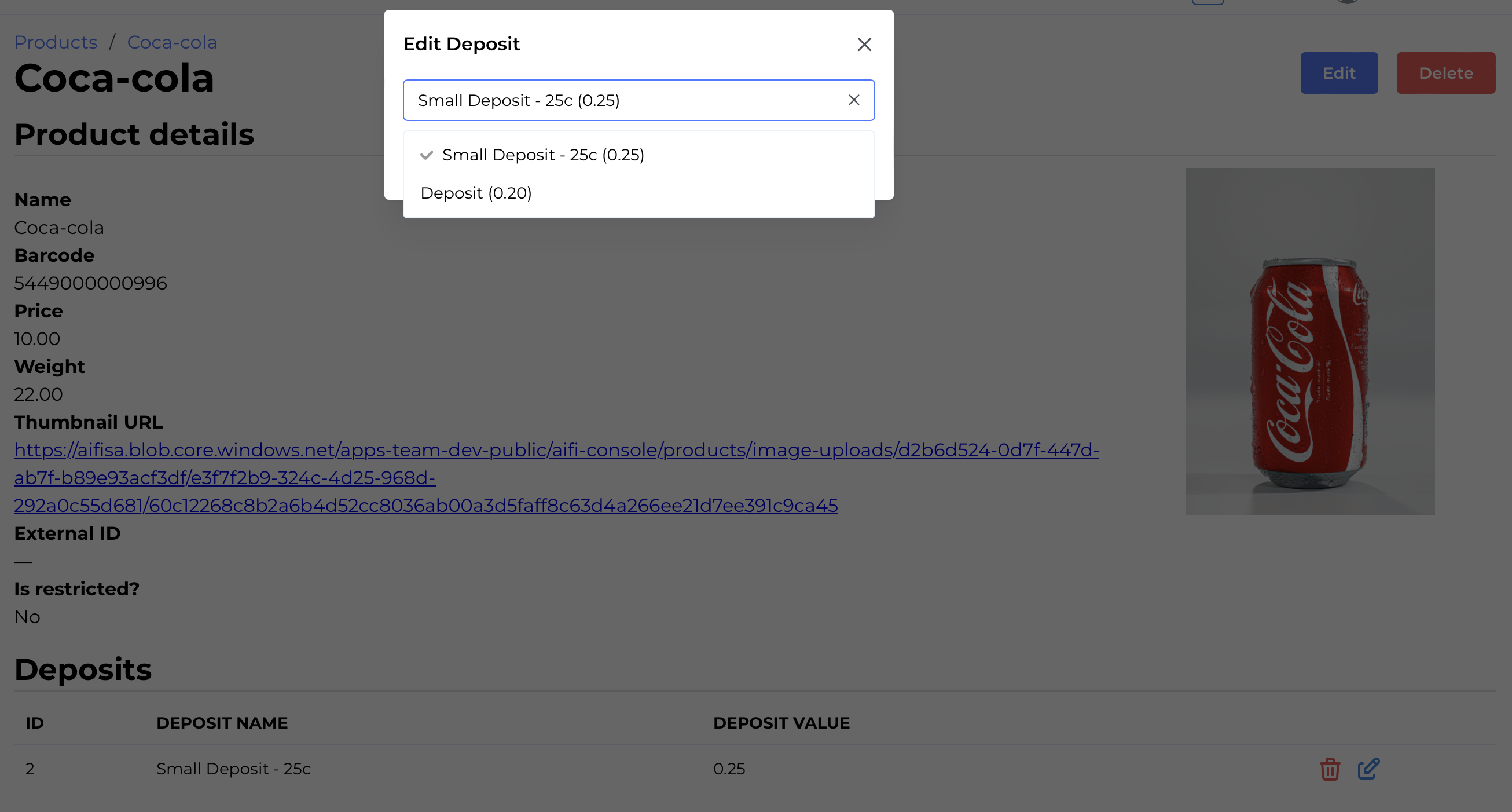
Alternatively, you can apply a deposit directly to a product by opening its details page in AiFi Console > Products and assigning the relevant deposit:
That’s it! Now, each time a customer purchases a product with an assigned deposit, the deposit amount will also appear on their receipt.