Taxes
AiFi Commerce - Taxes
If you are using AiFi Taxes solution as a part of AiFi Commerce, you can manage your tax rates and tax assignment to products through the Settings section of the AiFi Console menu.
AiFi Taxes allow to calculate taxes for products with the manually configured tax rates. Clients can set up default tax rate and tax overrides through AiFi Console, specifying which products should use the tax overrides (e.g. reduced/increased tax rate).
The solution is suitable to:
- Retailers with one flat tax rate across all products
- Retailers with the default tax rate and reduced/increased tax rates for selected products (tax overrides)
The solution might not be suitable to:
- Retailers that need to apply multiple different tax rates to one product.
- Retailers that need to apply different tax rates between stores / regions / provinces.
AiFi Commerce calculates the applicable taxes based on tax rates and product assignments set up by retailer, and provides access to sales and taxation reports, where the calculated taxes are displayed. AiFi doesn't file tax reports to local tax authorities as a part of the AiFi Commerce solution.
It's the retailer’s responsibility to engage with their Tax Advisor and local authorities to set up, file and pay the taxes associated to sales, within the required time frame and comply with local fiscal requirements.
Limitations
- OASIS version: The AiFi Commerce requires the OASIS 5.3+ system version. Retailers deciding to use this feature need to have their stores upgraded to the latest version of the system.
- Multi-Layered Tax Rates: AiFi Commerce doesn't currently support scenarios where multiple tax rates are assigned to a single product.
- Journey types: The AiFi Commerce is deployed on Retailer level. Meaning that all journey types, across all the stores will have the final basket values calculated in the same way by AiFi Commerce. For example, if the Retailer’s store has their Customer App (integrated with OASIS) and Payment Card flow. The final basket price of both Customer App and Payment Card journeys must be calculated by AiFi Commerce.
- Store-based taxes: The AiFi Commerce is deployed on Retailer level. Meaning that all the stores will have the final basket values calculated in the same way by AiFi Commerce, which doesn't allow to apply location-based tax rates between stores. It's recommended to use one of the existing POS integrations or integrate your own E-POS system with AiFi to support this scenario.
- Promotions & Discounts: AiFi Commerce is strictly related to order calculation including the Tax rates. It doesn't cover any type of promotion or discount calculation.
- Bottle/Container deposit fees: Since OASIS 5.4, AiFi Commerce also allows to collect container (e.g. bottle) deposits on top of the taxes collected. This is a feature that needs to be additionally enabled - see Deposits page.
Deployment Requirements and Options
The AiFi Commerce tax calculation system is a flexible solution designed to comply with local tax regulations. It can be enabled as an add-on during the retailer or store deployment process by the AiFi Software Deployment Engineer. To ensure seamless integration and compliance, the following information must be provided during the deployment process:
Tax Settings: Product Pricing Options
AiFi Commerce supports both tax-inclusive and tax-exclusive pricing models, offering flexibility to retailers based on their regional tax requirements:
Tax-inclusive pricing
- Description: Product prices include applicable taxes.
- Applicable Regions: Common in VAT/GST/CST jurisdictions where taxes are embedded in the displayed product prices.
- How It Works: -- The customer pays the product price set by the retailer, which includes taxes. -- AiFi Commerce calculates the tax amount from the total product price using the assigned tax rate. -- The system provides a breakdown on receipts and sales reports, showing the tax amount and net (subtotal) values.
Tax-Exclusive Pricing
- Description: Product prices exclude applicable taxes.
- Applicable Regions: Common in sales tax regions, such as the United States, where displayed prices are net of taxes.
- How It Works: -- AiFi Commerce calculates the tax amount and gross (total) values by applying the assigned tax rate to the net price. -- The customer pays the product’s total price, based on net price with applicable taxes added at checkout. -- Receipts and sales reports reflect a clear breakdown of the net price, tax, and total amount.
Tax Settings: Rounding Precision and Methods
AiFi Commerce offers configurable rounding precision and methods for calculated tax amounts, ensuring compliance with currency standards and regional tax requirements.
- Rounding Precision
Specifies the number of decimal places to which values should be rounded.
Examples:
- For USD: Round to the second decimal (e.g., 11.105 → 11.11, 11.983 → 11.98).
- For JPY: Round to the nearest integer (e.g., 11.105 → 11, 11.983 → 12).
By default, rounding is performed to the second decimal.
- Rounding Levels
AiFi Commerce supports the following rounding methods for calculated tax amounts:
- Document/Receipt Level: Sum all unrounded tax values on the receipt and round at the receipt level based on the defined rounding precision.
- Line Item Level: Round the tax amount for each individual line item based on the defined rounding precision.
- Tax Group Level: Sum all unrounded tax values within a tax group and round at the group level based on the defined rounding precision.
By default, rounding of tax values is performed at the document/receipt level.
- Rounding Method
AiFi Commerce uses mathematical rounding for calculated tax amounts:
- Fractions of 5 and above are rounded up.
- Fractions of 4 and below are rounded down.
This rounding method is predefined and currently can't be changed.
- Rounding Differences
If discrepancies arise between rounded tax amounts and net/gross total values, AiFi Commerce optionally allows redistribution of rounding differences to ensure accurate totals.
Taxes Configuration
AiFi Commerce calculates taxes using the default tax rate and any tax overrides configured in the AiFi Console. To ensure accurate tax calculations, the client must:
- Set up the default tax rate.
- Define any required tax overrides for products with reduced or increased tax rates.
- Assign these rates to the respective products.
Once the tax configuration is complete, AiFi Commerce will automatically calculate product taxes based on the defined rates.
Tax rates and their attributes can be managed in the
AiFi Console > Settings > Taxes page, provided the AiFi Commerce add-on is
enabled for the retailer. To access this page, users must have the appropriate
roles assigned:
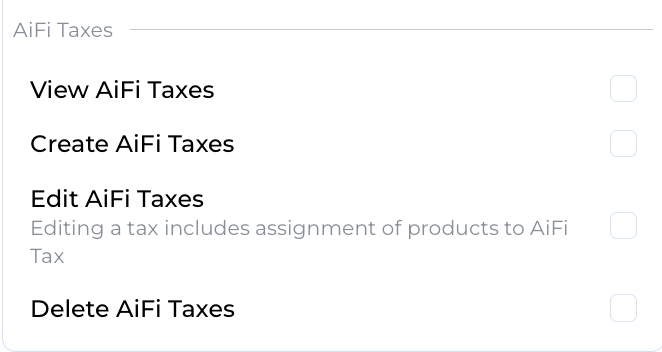
If the Taxes page isn't visible under Settings, contact AiFi Support to ensure the necessary permissions are granted.
Creating Tax Rates
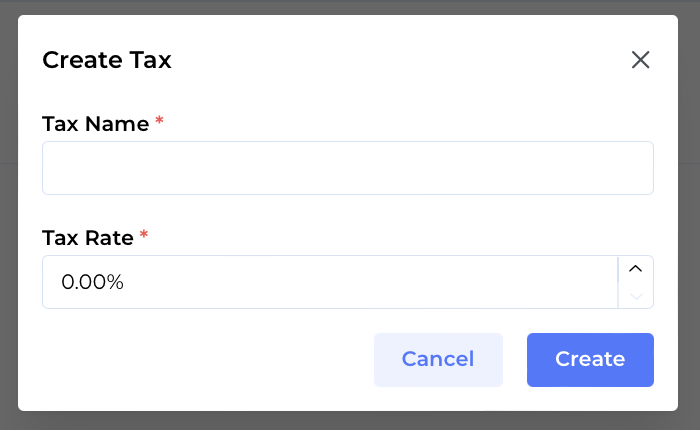
To create a new tax rate, navigate to AiFi Console > Settings > Taxes and
click the +Add button. Provide the following details:
- Tax Name: The system name of the tax rate, which will be displayed on receipts.
- Tax Rate: The percentage rate used to calculate taxes for applicable products.
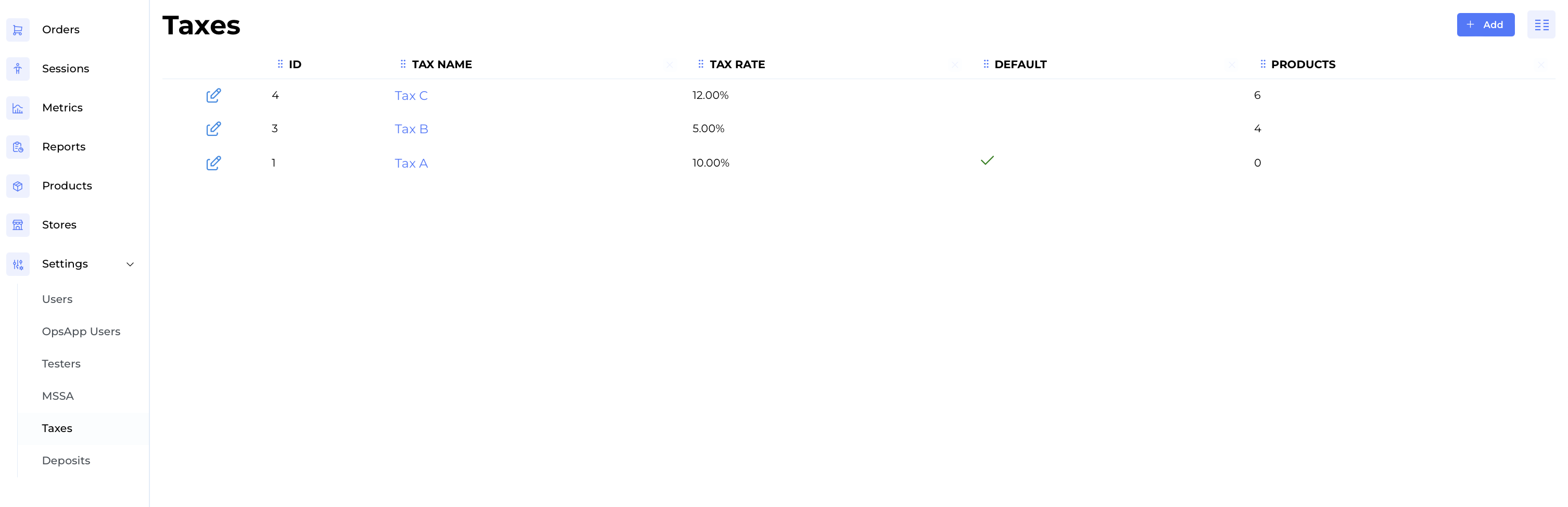
After adding, the tax rate will appear in the list, along with the following attributes:
- Tax ID: An autogenerated, unique system identifier for the tax rate, which can be used for bulk tax assignments to products.
- Default Flag: Indicates the default tax rate applied to all products that don't have a specific tax override assigned.
The first tax rate created in the system automatically becomes the default tax rate, applied to all products that don't have a specific tax override assigned. Only one tax rate can be designated as the default. Any additional tax rates created are considered non-default and must be explicitly assigned to products as tax overrides.
Assigning Tax Overrides
AiFi Commerce enables the application of specific tax rates to individual products using the Tax Override feature. This ensures the correct tax amount is collected for each product, accommodating scenarios where goods may be exempt from tax or subject to reduced rates, rather than applying a single global tax rate.
Tax overrides can be assigned to products through the following methods:
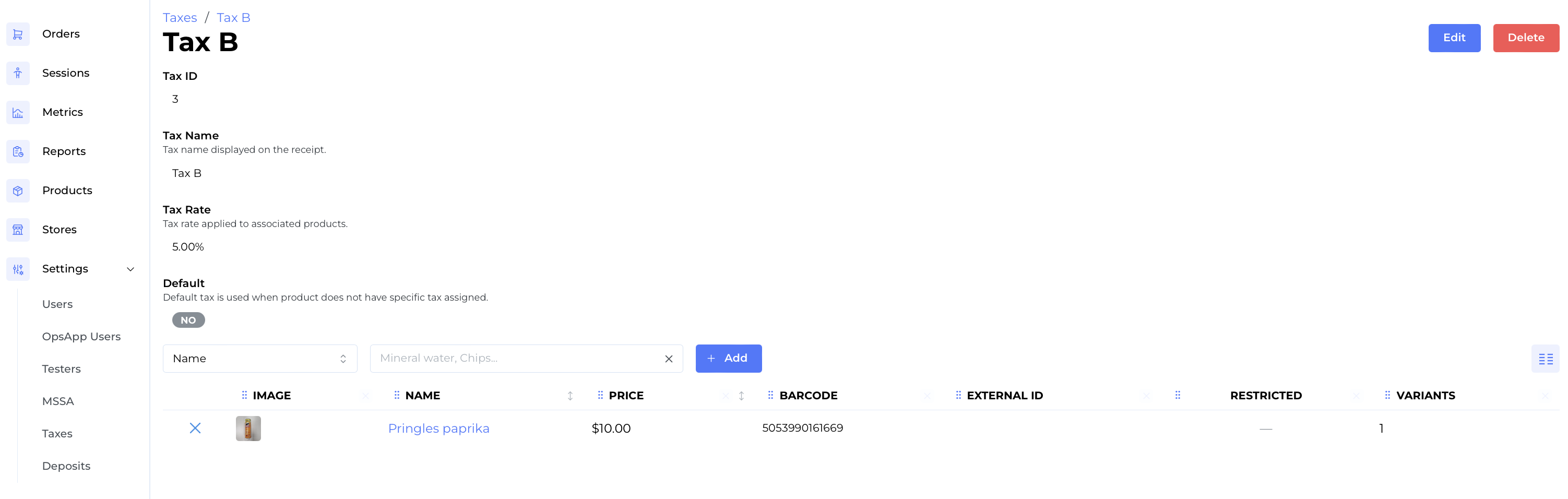
- Assign products to tax overrides
- Navigate to
AiFi Console > Settings > Taxes > Tax Details. - Open the details of a non-default tax rate.
- Search for and assign products that should use the specific tax override.
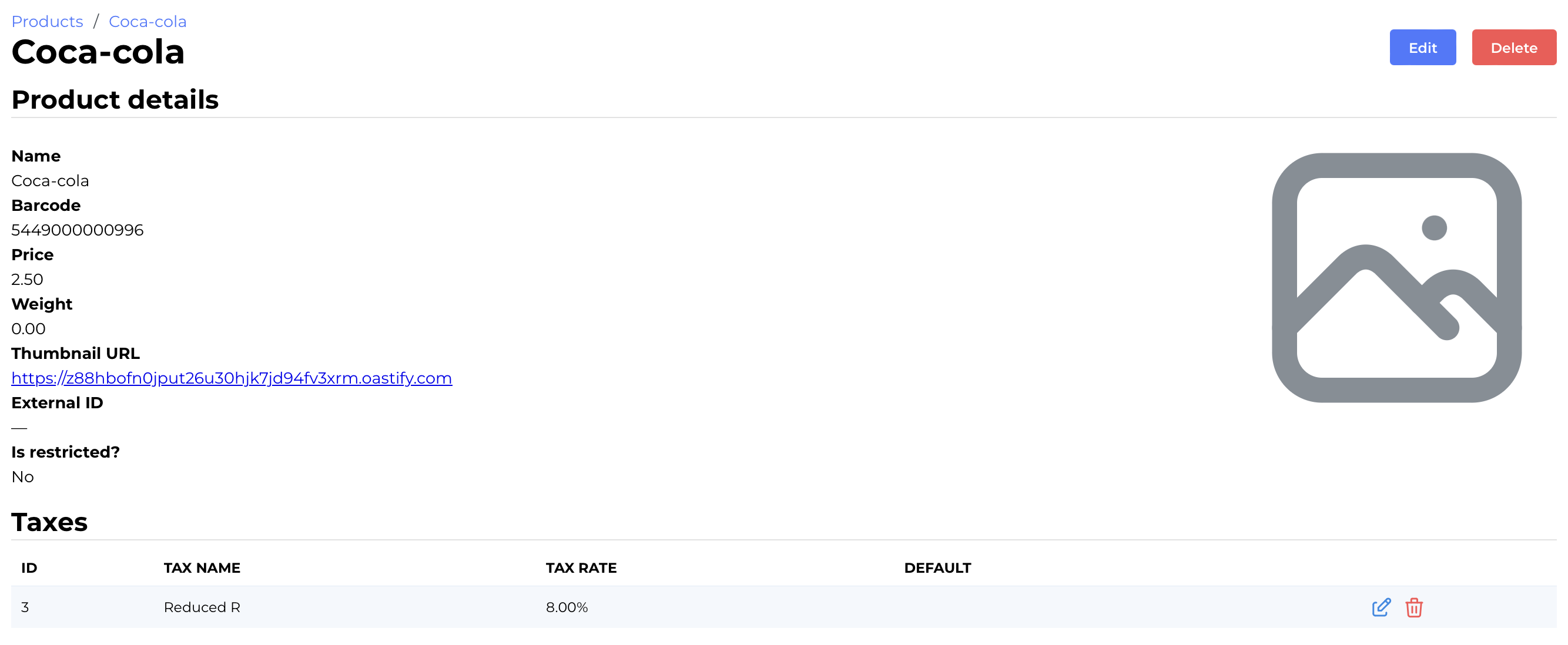
- Assign tax overrides to products
- Navigate to
AiFi Console > Products > Product Details. - Open the product details and assign a tax override that should be used to calculate its tax amount.
- Assign tax rates through product bulk upload
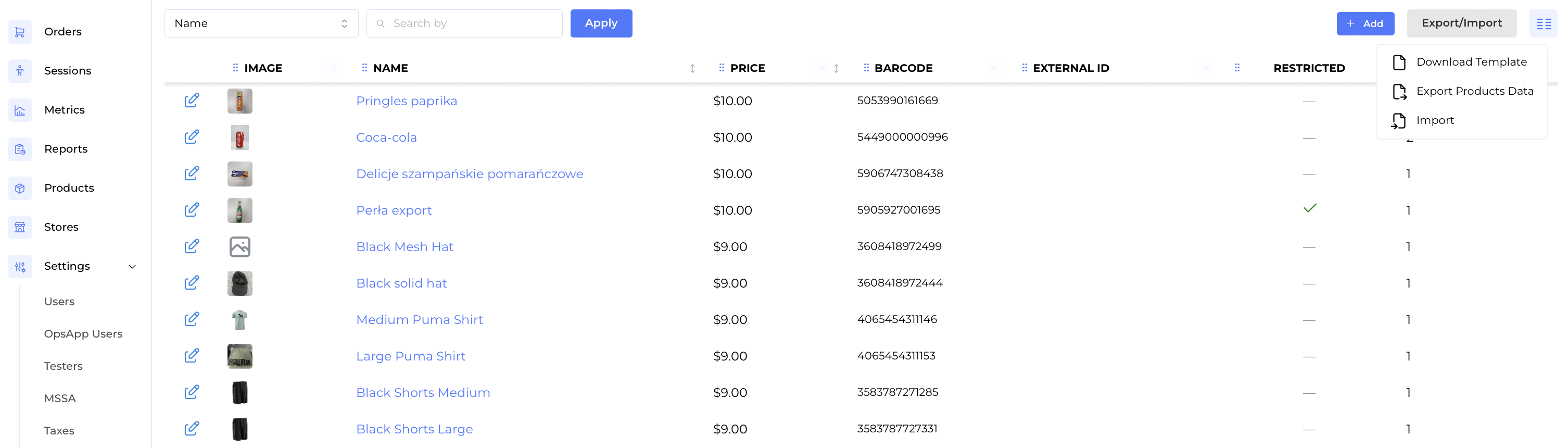
- Navigate to
AiFi Console > Products > Product Export / Import. - Export the product list as a CSV file.
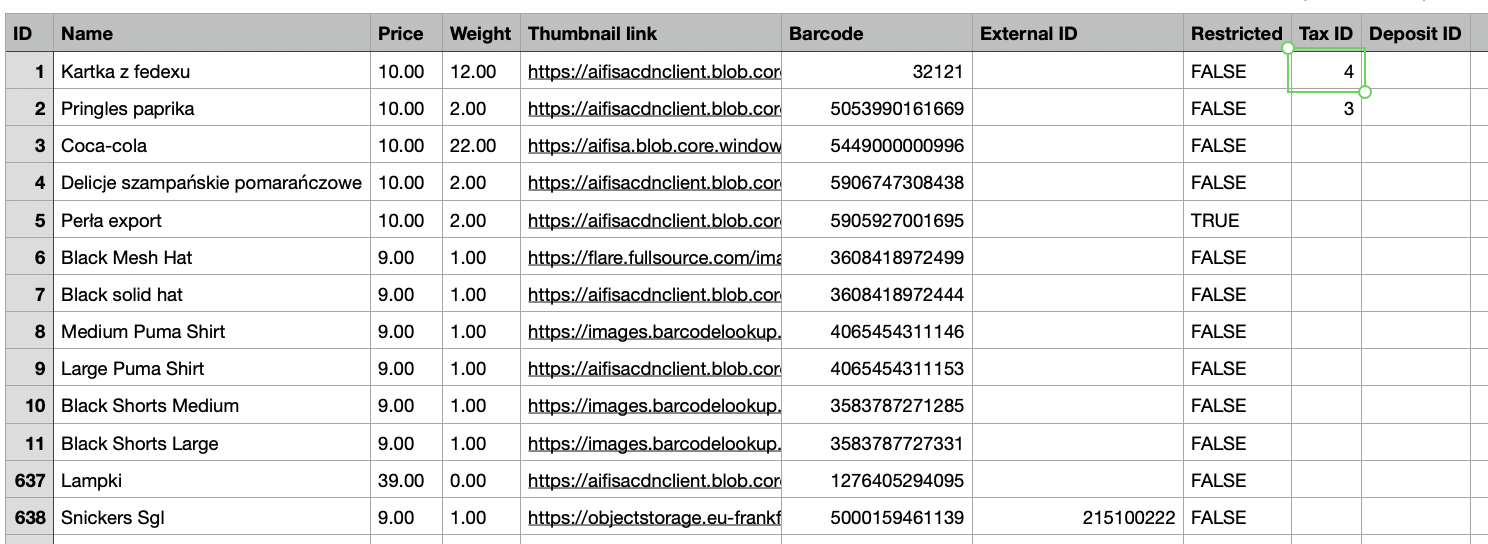
- In the CSV file, populate the Tax ID column with the IDs of the relevant tax rates for products requiring non-default rates. Leave the column blank for products using the default tax rate.
- Once updated, upload the CSV file to apply the changes and assign tax rates to the respective products.
Don't remove or edit the Product IDs (first column) in the file, that are used to match the product attributes in product database.
That's it!
Once configured, AiFi Commerce will calculate the appropriate tax amount for each product based on the default or assigned tax rates, ensuring accurate tax calculations on receipts.