Orders List
Overview
The Order List page provides a comprehensive view of all receipts generated for the shopping sessions of your customers, including their statuses and associated details.
Orders list
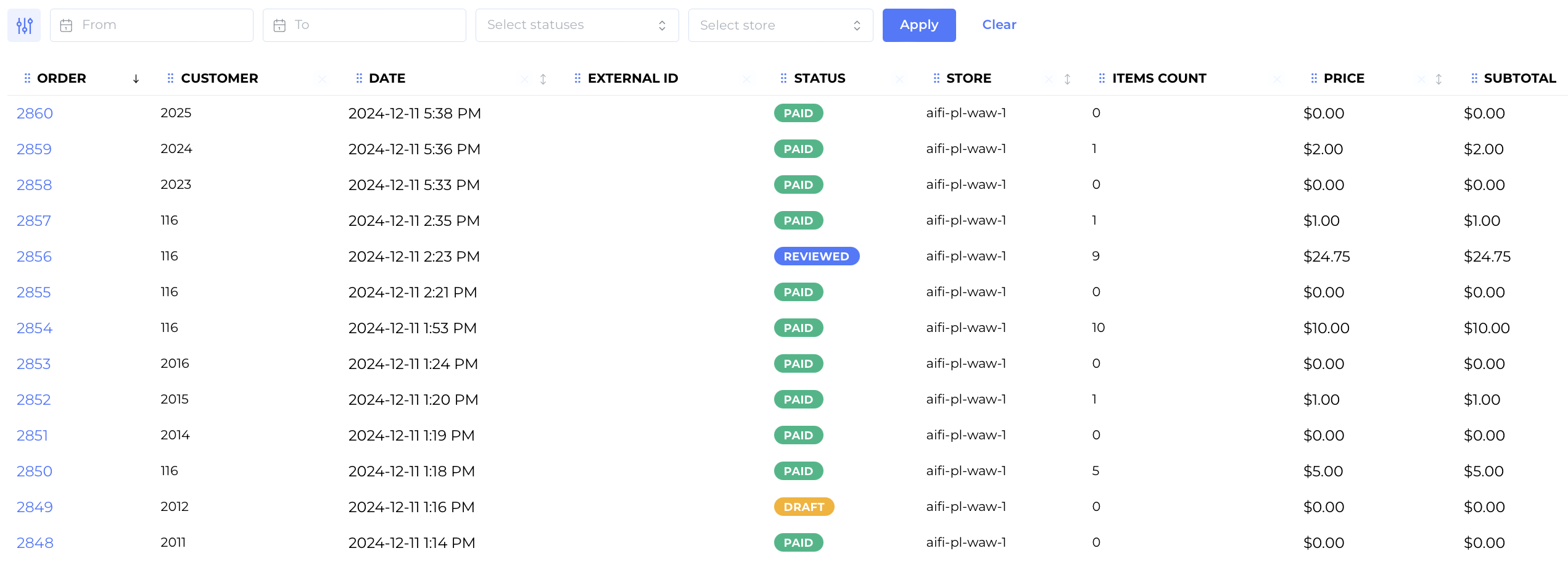
In the Orders List, you can find all customer receipts with the following information:
- Order ID: Unique ID of the receipt generated by the AiFi system.
- Customer ID: Unique ID of the customer that made the purchase.
- Date: Date and time of the draft receipt creation. This should be a time when all the members of the shopping group left the store.
- External ID: If the integration between AiFi and your internal systems returns the unique ID of the order, you will find it in this column.
- Status: Status of the order, which can be:
- Draft: Order created, being processed by AiFi system.
- Payment Processing: Order completed, awaiting payment.
- Paid: Order completed and paid by the customer.
- Unpaid: Order completed, payment process failed.
- Pending: Order contested by shopper and is pending your revision.
- Reviewed" Order review completed; refund issued (if applicable).
- Store: Name of the store where the purchase was made. You can edit the displayable name of each store in the Stores page of the AiFi Console.
- Items Count: Quantity of items purchased.
- Price / Subtotal: Gross / net price of the receipt.
The orders will appear on the list in the Draft status as soon as all members of the shopping group exit the store (once AiFi system recognizes all the exit events). The date and time you see on the list is adjusted to your local time zone.
Search and filters
You can easily filter the orders by their date and time (from:to), order status, store, and total price. You can also search for specific orders using one of the below values:
- Order ID: Unique AiFi ID of the order.
- External Order ID: Unique order ID from your system (if provided).
- Session ID: Unique AiFi ID of the shopping session (created during customer's authorization)
- Payment ID: Unique payment ID from the payment service provider.
- CC Last 4: Last four digits of the payment instrument used by the customer.
- Customer ID: Unique AiFi customer ID.
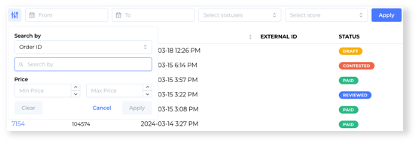
Select the desired filter values and click on the Apply button to proceed. To edit applied filters, you can remove selected or clear the entire selection using the Clear button.

Order list actions
You can perform the following actions from the Order List:
- Click on the column header to sort the list by the selected field.
- Apply one of the filters to look up specific orders.
- Search for a specific order using one of the unique IDs.
- Click on the Order to open its details.
Column order and visibility
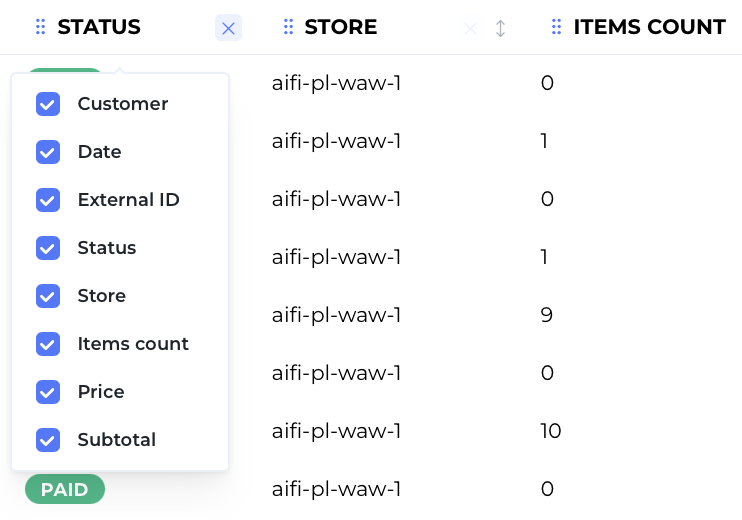
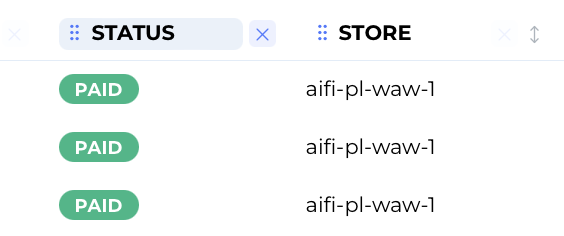
You can easily change the order of columns and their visibility by hovering over their headers. Drag and drop the column to change its order on the list:
Right-click the header to see all available columns:
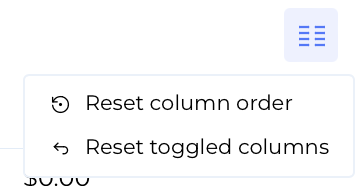
To reset the order and visibility to the default view, use the list menu available in the top right corner of the screen: