Store Activation Testing Sessions & Results
To certify that a store has been deployed successfully, AiFi provides Testing Sessions to perform test shopping journeys using the AiFi Tester App. Testers pick up and put back products according to instructions for each test case. The AiFi Console enables the creation of testing sessions and the tracking of their results.
- AiFi Tester / Certification App: A mobile app (iOS and Android) used to perform test shopping journeys.
- Testing Session: A group of test cases scheduled for a specific store and time frame. Includes selected gondolas, products, and difficulty levels.
- Test Case: A single test scenario with instructions for what to pick up and put back. Each has an authorization token that allows store entry.
- Difficulty: The complexity of a test case based on actions and the expected receipt.
- Accuracy: A measure of how well the AiFi system processed test sessions, based on a comparison between expected products and the actual receipt.
Prerequisites – User Roles
Users need the following roles for test generation:
Stores
stores:liststores:view_dashboard
Testing sessions
testing-sessions:createtesting-sessions:list
Test generations
test-cases:generations:listtest-cases:generations:create
Tests
test-cases:list
Required roles to create TesterApp accounts
Testers
testers:listtesters:createtesters:edit
Generating Tests
Accessing the Test Generation Interface
- In the AiFi Console, go to Stores from the left menu and select the
relevant store.

- Open the Activations tab, then the Certification sub-tab.
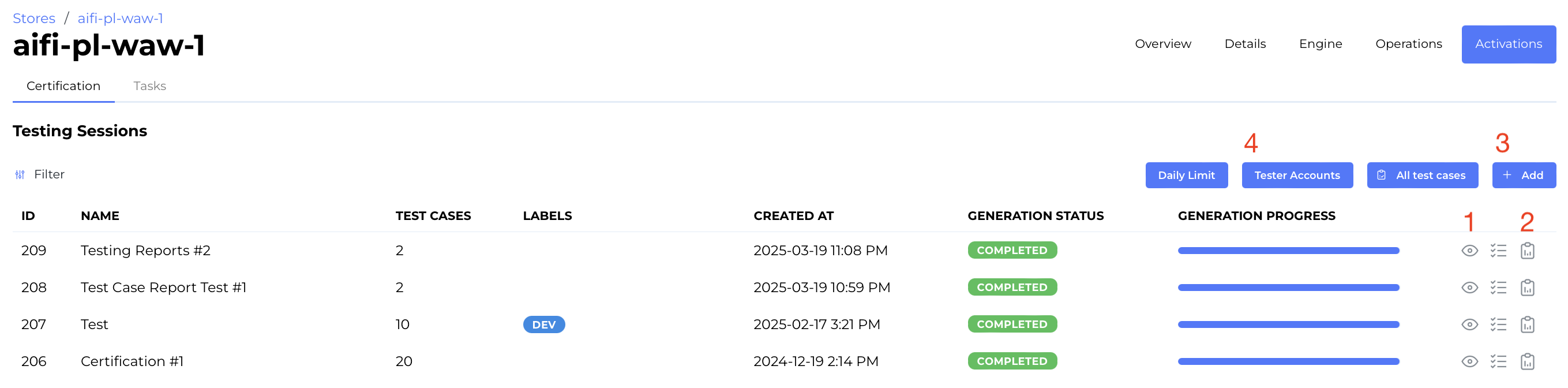
- From this view, you can:
- View details of a testing session
- Generate a results report
- Create a new testing session
- Navigate to the Tester Accounts list
Creating a Testing Session
Select + Add from the Testing Sessions view.
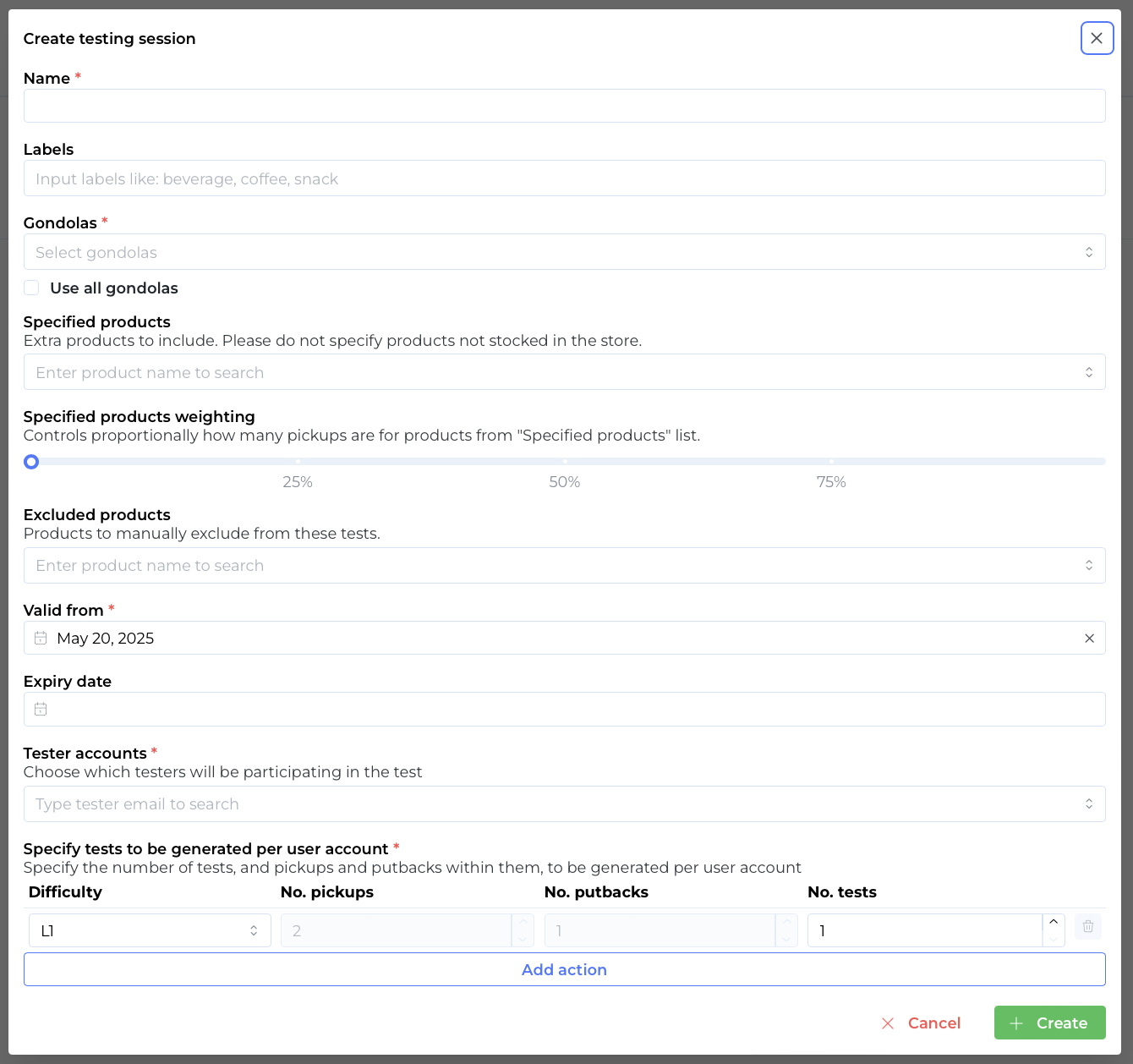
Configuration options include:
- Labels: Add a label for session categorization (appears in the Tester App).
- Gondolas: Choose specific gondolas or use all gondolas.
- Specified Products: Force inclusion of certain products (e.g. coffee, beer). Products not stocked won't appear on receipts.
- Excluded Products: Prevent certain products from being included, even if on the planogram.
- Validity Date: First date the tests become available in the Tester App.
- Expiry Date: Last date the tests are available.
- Tester Accounts: Assign the tests to one or more tester accounts. If two accounts are selected and 15 tests are created, a total of 30 test cases will be generated.
- Difficulty: Choose from predefined levels or create custom configurations using “Add action”:
L1 – 2 pickups, 1 putback → 1 product on receipt
L2 – 3 pickups, 1 putback → 2 products on receipt
L3 – 5 pickups, 2 putbacks → 3 products on receipt
L4 – 7 pickups, 3 putbacks → 4 products on receipt
L5 – Custom → 5 products on receipt
Select Generate Test to proceed. You'll return to the Testing Sessions list, and the new session will appear with its generation progress shown. Once completed, the session is available in the assigned tester accounts.

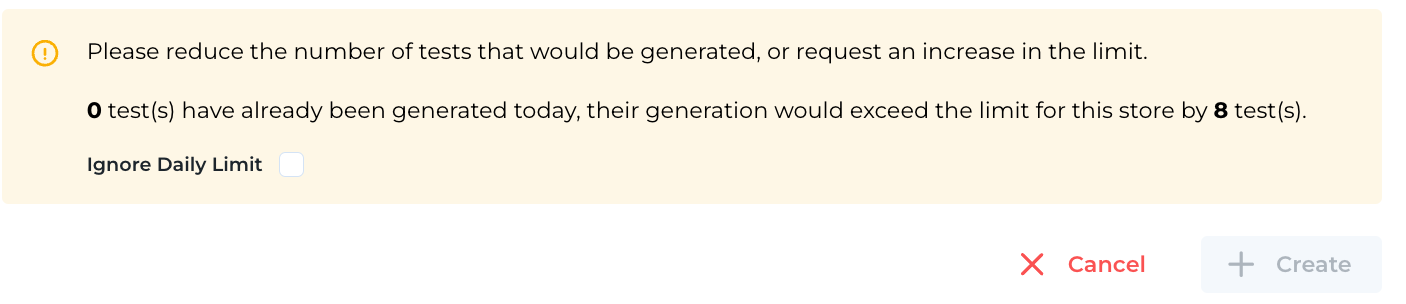
By default, only 100 test cases can be generated per store per day. Contact AiFi Support to lift this limit.
Viewing a Testing Session
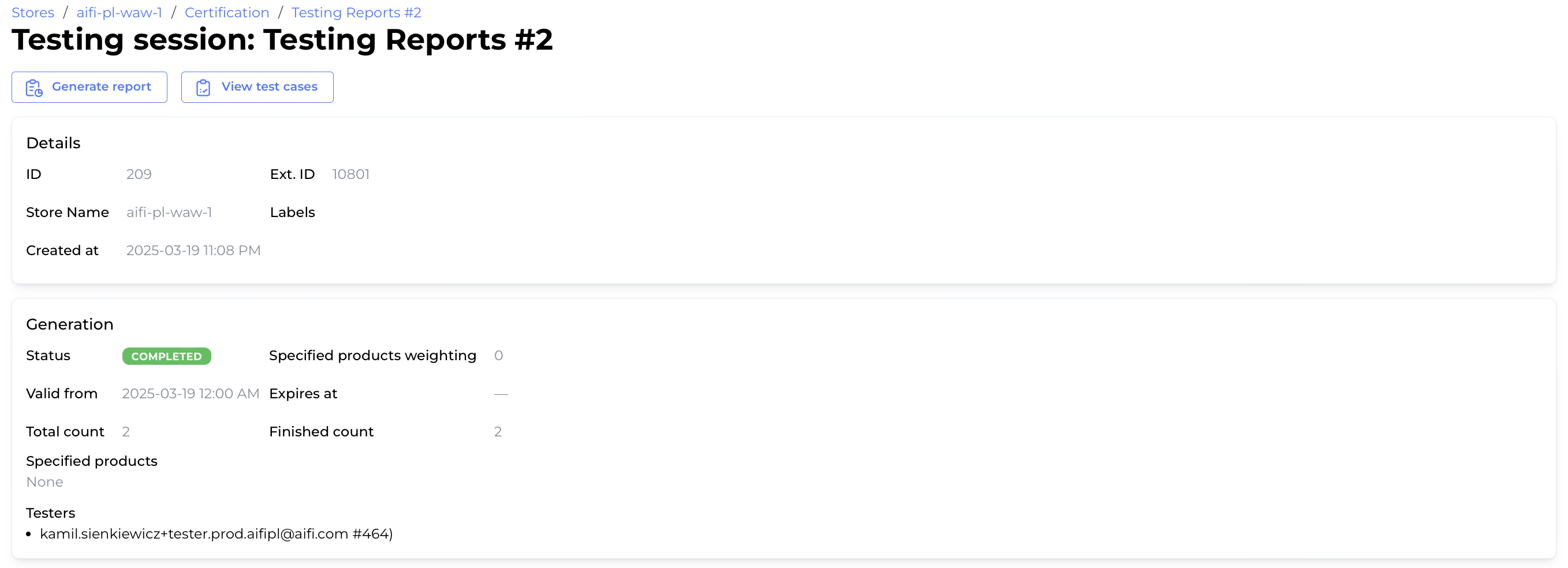
Select a session to view its details. You can also generate a session report that includes progress, accuracy, and failure insights.
Generating Testing Session Results
Once a tester completes their assigned tests:
- Go to the Testing Sessions list or detail view.

- Select Generate Results.
- A new window will show the latest data.
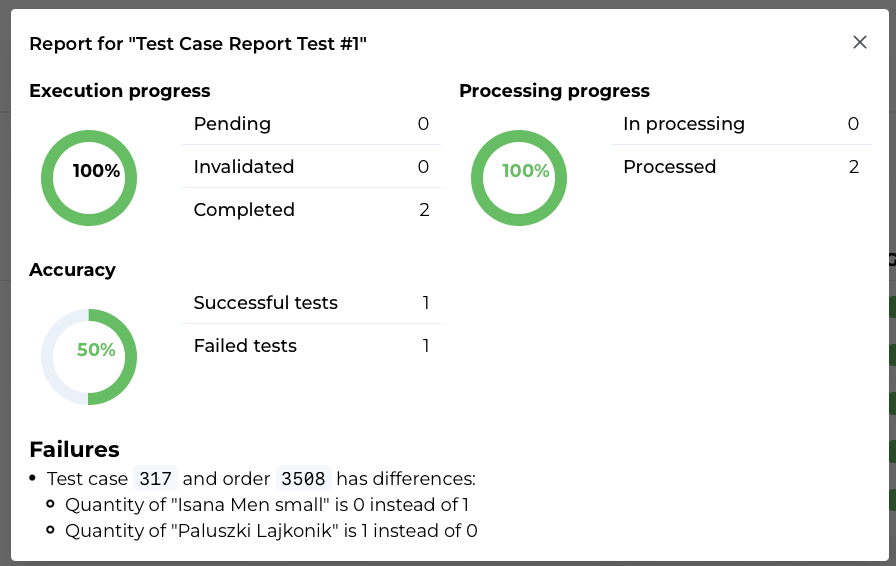
The report includes:
- Execution Progress: Status of test execution.
- Processing Progress: How the AiFi system processed the tests.
- Accuracy: Count of successful vs. failed tests.
- Failures: Differences between expected products and actual receipts.
Each time you generate a report, the data refreshes.
Reviewing the Linked Order
To review an associated order:
- Open the test case details.
- Select Assigned Session ID to filter the Orders List.
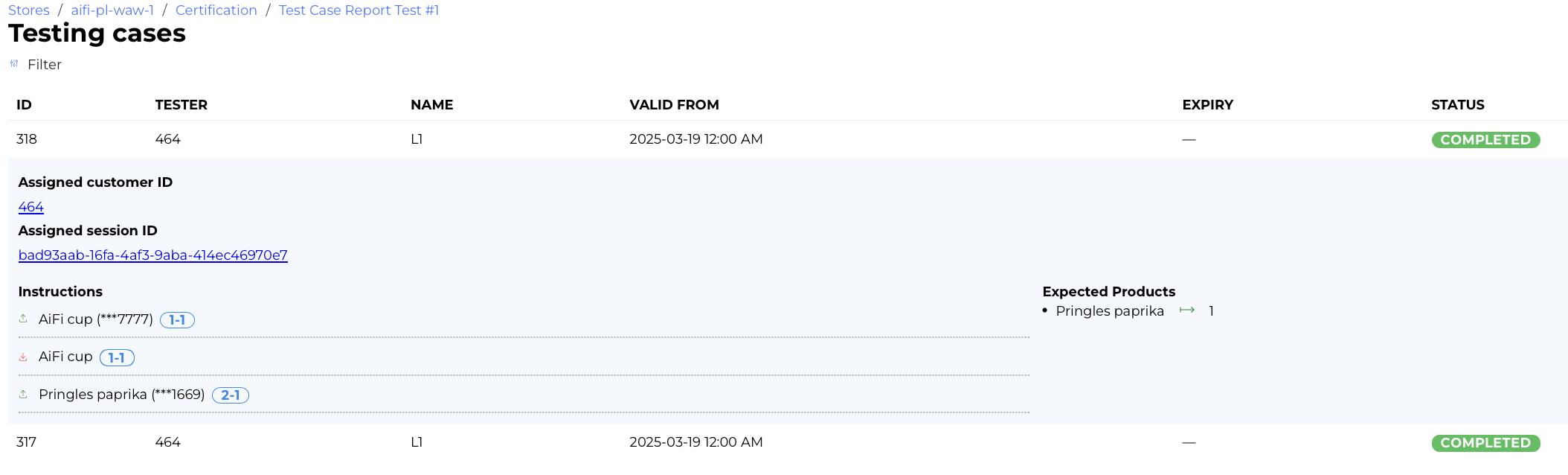
- Select the order to see the session’s receipt and journey.

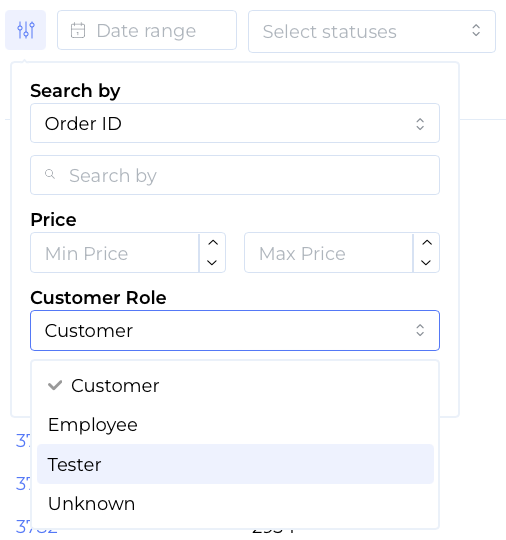
To view all orders from testing sessions, filter the Orders List by
Customer Role = Tester.
Managing Tester Accounts
Go to Settings > Testers in the Console.

- To add a tester, select + Add and fill in the required details.
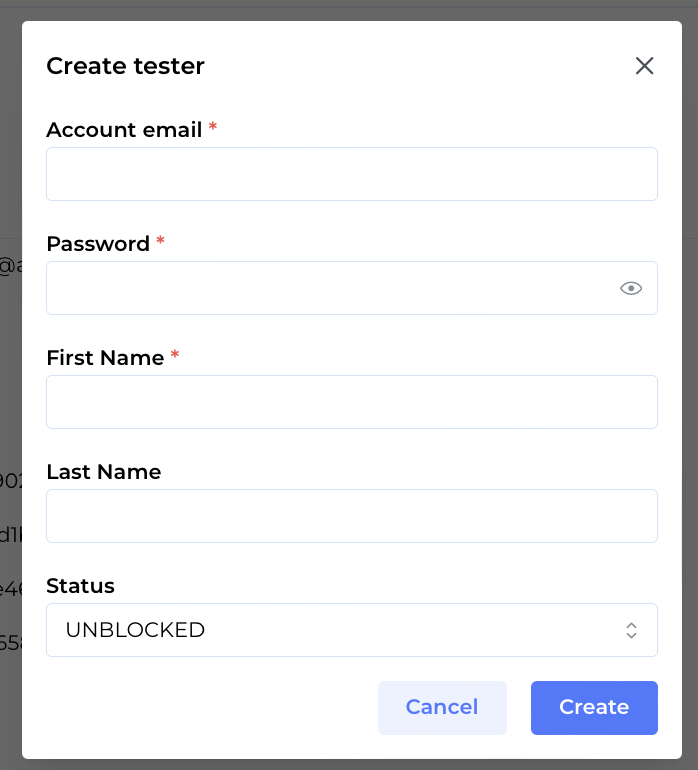
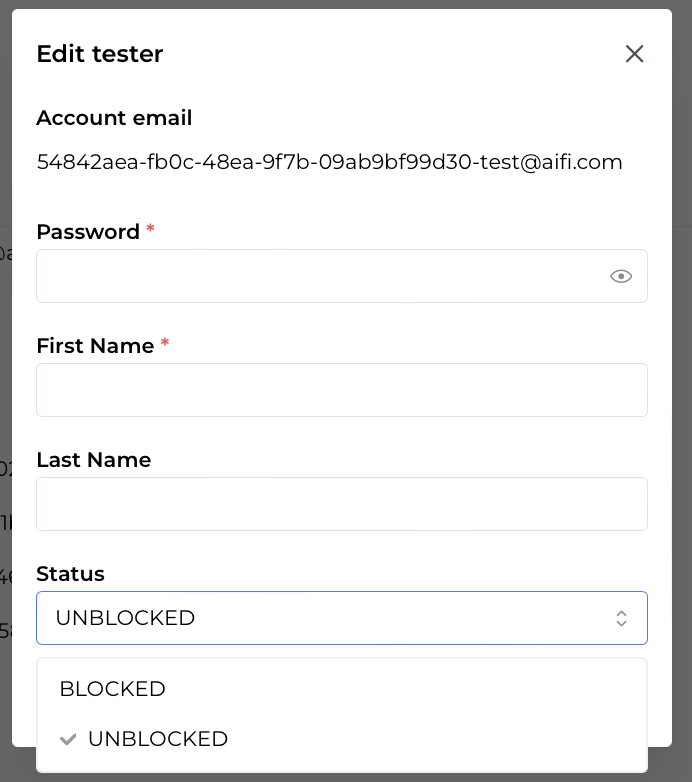
- To edit a tester (name, password, or status), select their name.

- To deactivate a tester, change their status.
A tester email can only belong to one organization. Use email aliases like
user+org@mail.com to manage testers across orgs under one inbox.