Users
If you are an administrator of your organization, you can manage your staff members' access to AiFi Apps (AiFi Console and AiFi Operations App) through the Settings section of the AiFi Console menu.
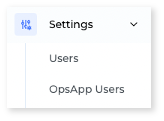
Manage Access
- AiFi Console Users: Select 'Users' to manage access to AiFi Console.
- AiFi Operations App Users: Select 'OpsApp Users' to manage access to AiFi Operations App.
AiFi Console
User list
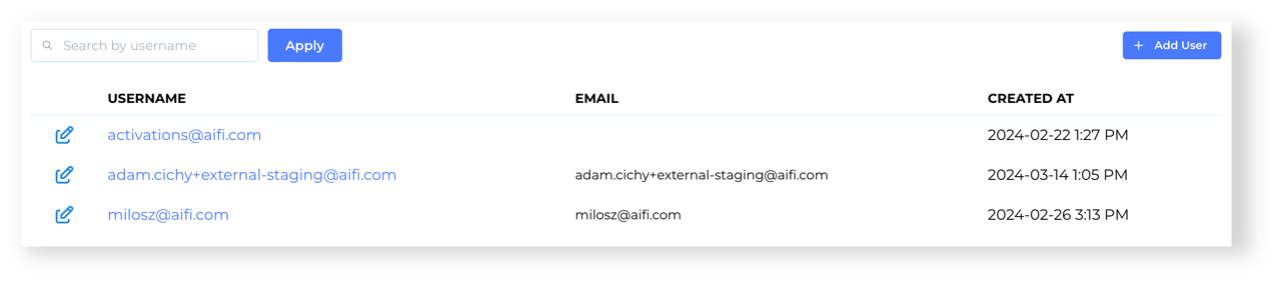
When you select 'Users', you will get a list of current users with access to AiFi Console of your organization. You can search for a specific user, add a new user, or edit an existing one.
Add new user
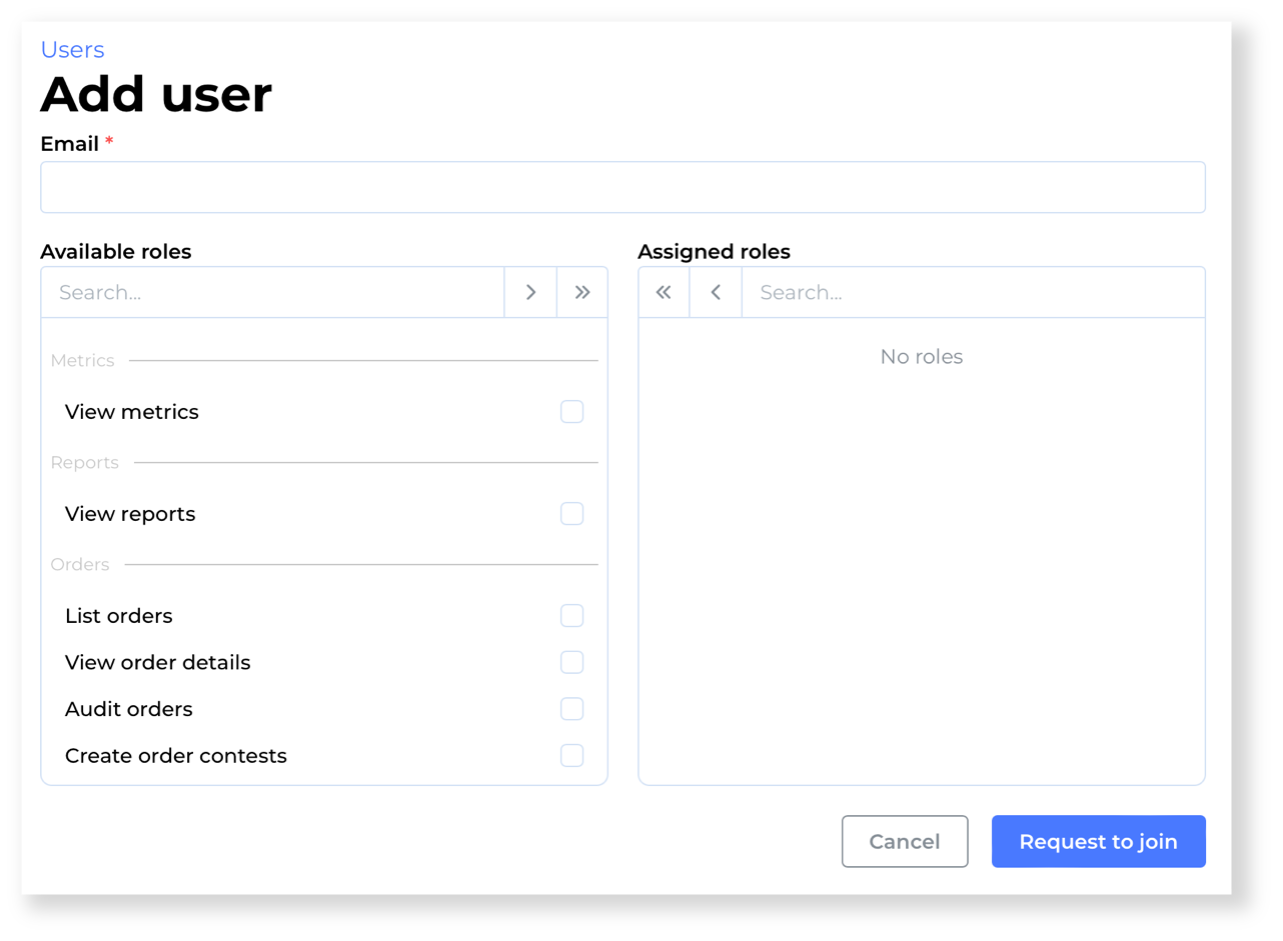
Click on the "Add User" button to create a new AiFi account. You will be asked to provide an email address and select the roles to assign to the new user. Once selected, click the "Request to join" button to send an email invitation to your staff member. The newly created user will need to set up their password through the invitation link.
Assignable Roles
You can assign the following roles to your organization members: Select all with a double arrow (>>) button or choose an individual one with a checkbox and move it to the "assigned roles" with a single arrow (>) button to save the selection:
- View metrics: User can access the "Metrics" page.
- View reports: User can access the "Reports" page.
- Orders
- List orders: User can access the "Orders" page.
- View order details: User can see the details of the Orders.
- Audit orders: User can review the video footage of the Orders.
- Create order contests: User can contest an Order.
- Edit order contests: User can revise the contested order and submit changes.
- Customers
- View customer PII: User can view email, phone and metadata of registered customer if provided. Products
- View products list: User can access the "Products" page.
- Create products: User can create new products.
- Edit products: User can edit existing products.
- Delete products: User can remove existing products.
- Settings
- View settings: User can view Settings section of AiFi Console.
- Edit settings: User can edit the Settings of AiFi Console.
- External Users (AiFi Console)
- List external users: User can view the list of AiFi Console users.
- Create external users: User can add new AiFi Console users.
- Edit external users: User can edit existing AiFi Console users.
- Delete external users: User can remove AiFi Console users.
- Operations App Users
- List Operations App users: User can view the list of OpsApp users.
- Create Operations App users: User can add new OpsApp users.
- Edit Operations App users: User can edit existing OpsApp users.
- Delete Operations App users: User can remove OpsApp users.
- Stores
- List stores: User can view the list of stores.
- Edit stores: User can edit details of stores.
- View store dashboards: User can view store dashboards.
- List hardware: User can view connected hardware.
- List testing sessions: User can view testing sessions in Activations tab.
- Create testing sessions: User can create new testing sessions.
- Testers
- List testers: User can view the list of TesterApp testers.
- Create testers: User can create new TesterApp testers.
- Edit testers: User can edit existing TesterApp testers.
Edit existing user
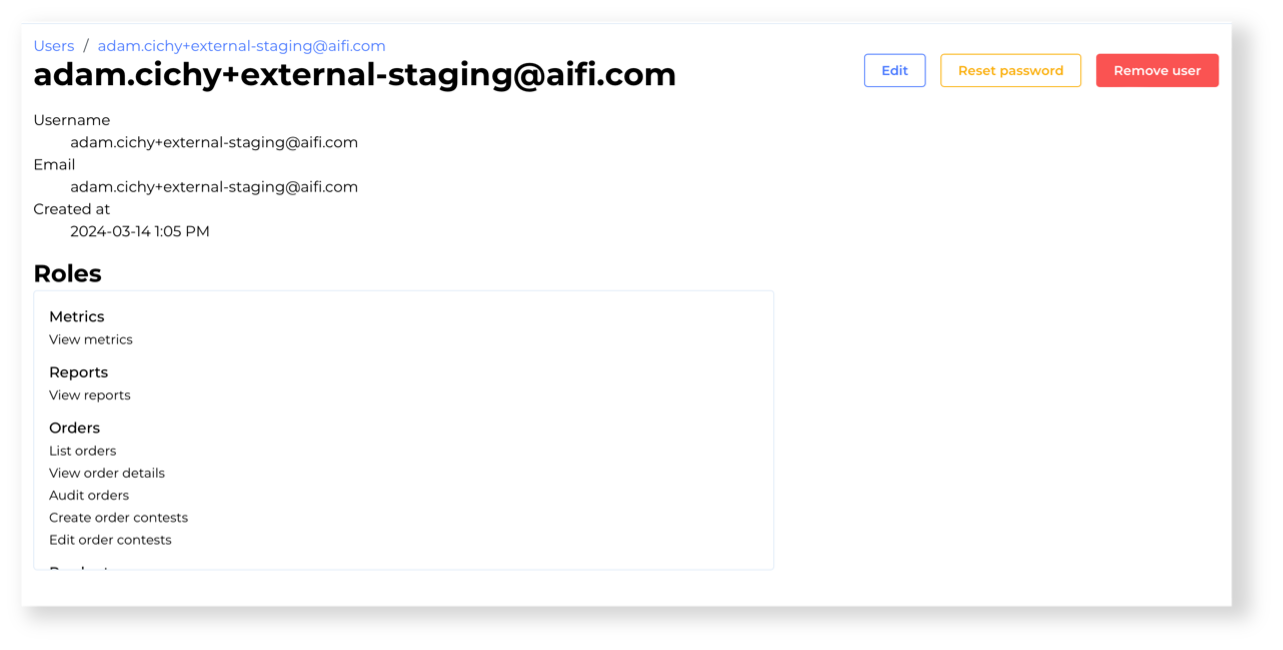
Click on the "edit" button on the Users list or open user details to edit the user, reset the password, or remove the account.
Operations App
Operations app user list
Upon selecting OpsApp Users, you will be presented with the list of current users with access to AiFi Operations App of your organization. From this page, you can search for a specific OpsApp user, create a new account, edit, or remove an existing one.
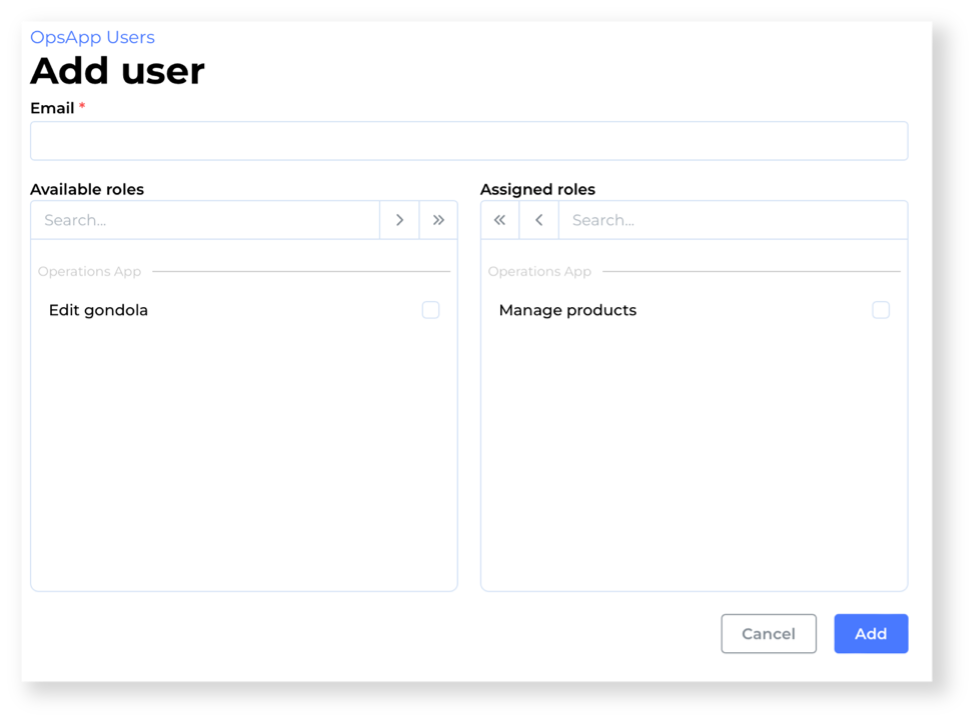
Add new Operations app user
Click on the "Add User" button to create a new AiFi Operations App account. You will be asked to provide an email address and select the roles to assign to the new user. Once selected, click the "Request to join" button to send an email invitation to your staff member. The newly created user will need to set up their password through the invitation link.
By default, all Operations App users can select the stores, see and manage planogram placements, and view product details.
With the "Manage products" role, users can additionally create new products and edit details of existing ones.
With the "Edit gondola" role, users can additionally change the number of shelves and their heights on each gondola of the store.