Products List page
Products list
The Products List page allows you to browse the catalogue of products uploaded to AiFi’s database. Here, you can view details such as name, price, barcode, external ID, tax code, and more. You can update this information at any time or add new products.
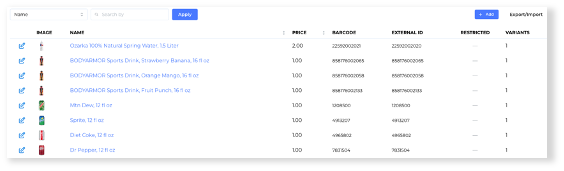
Product search
You can search for a specific product using the product name, barcode, or external ID.
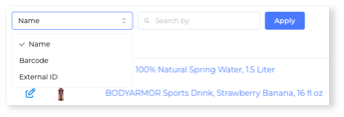
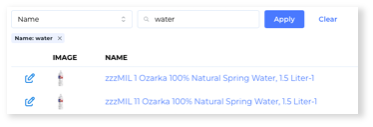
Barcodes and External IDs must match the exact value to be found. Product name is a phrase match, meaning that the used query must include the keyword but doesn't need to be the exact value you are looking for.
Product details
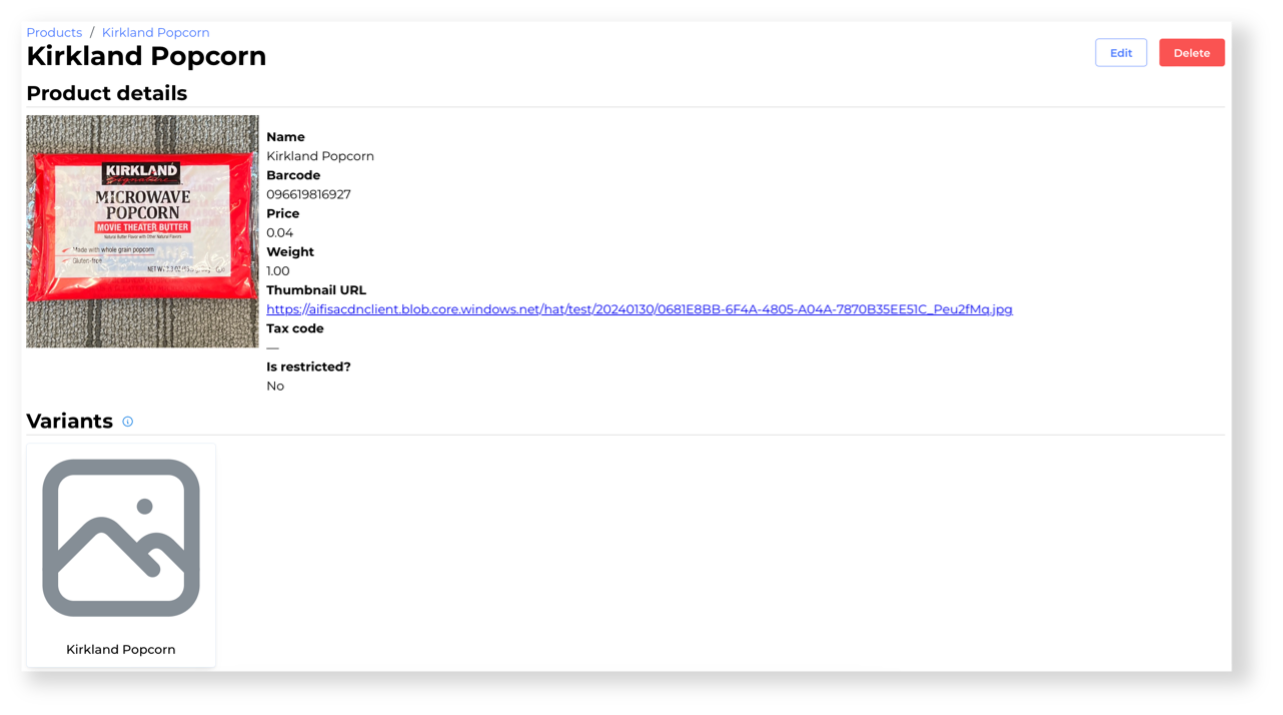
Click on an individual product to open its details page. Here, you can review all the product attributes, and you have the option to edit or remove the product.
Editing products
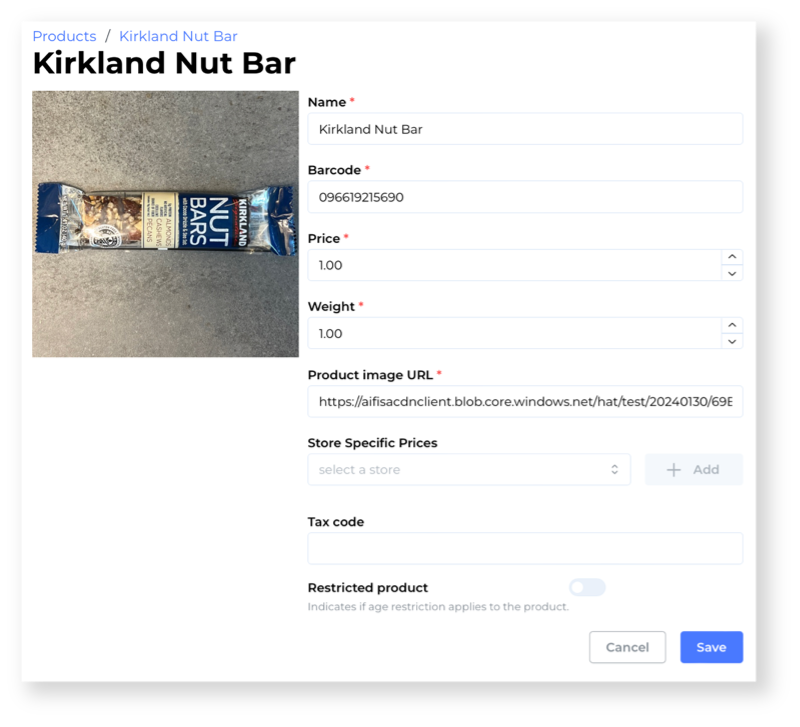
Click on the “Edit” button either on the Product List or Product Details page to open the editing view. Here, you can update all the product attributes and its image, set store-specific prices, mark it as a restricted product, and assign a tax code. Select “Save” to submit the changes.
Add new products
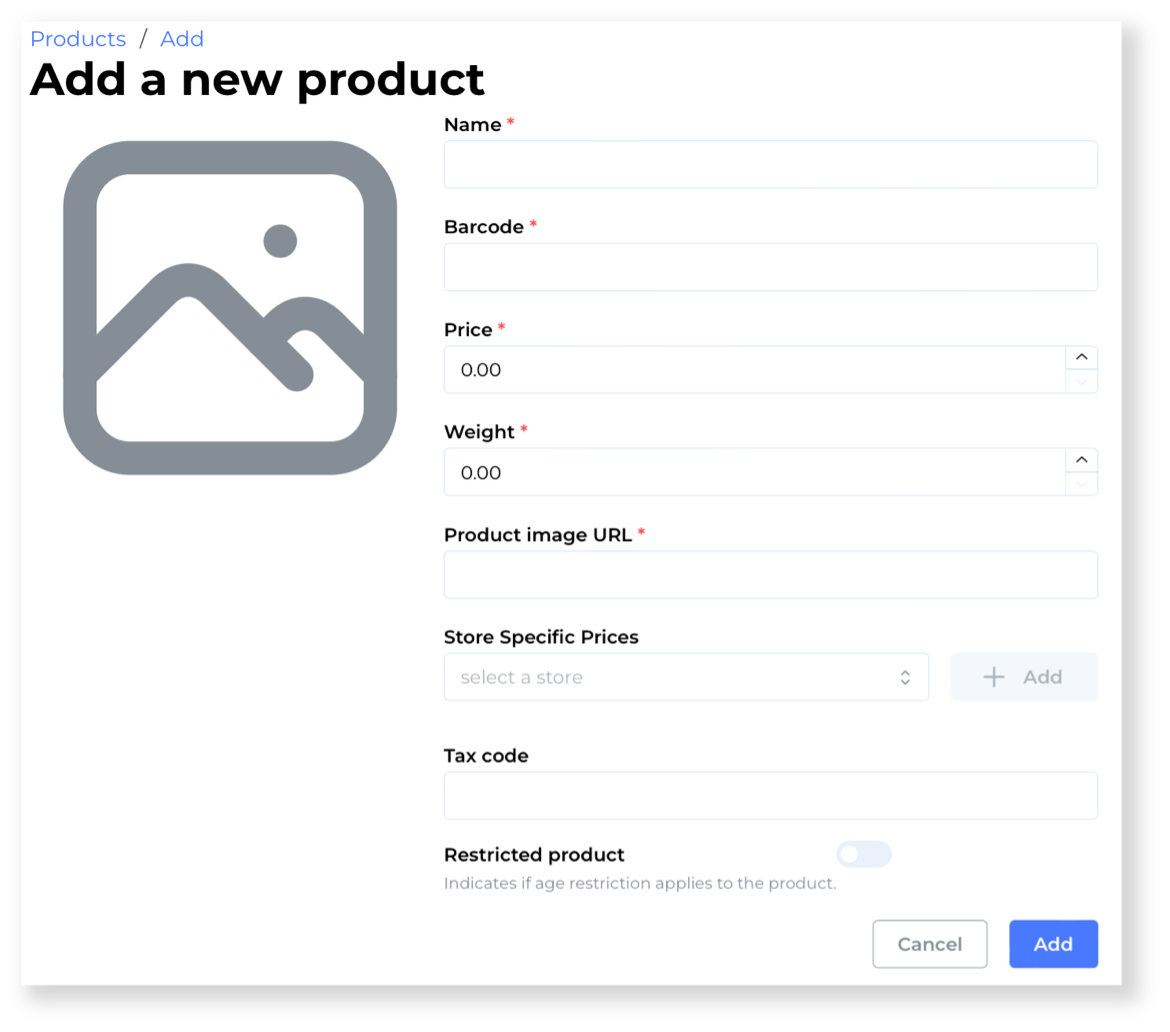
You can add a single product from the Products List view by clicking on the “Add” button in the top-right corner. Once selected, you will be redirected to a product creation view. To add a product, you must provide all required fields marked with an asterisk (*).
You can also add a new product directly through the Operations App by scanning the product’s barcode.
Tax codes (AiFi Commerce)
If you use AiFi Commerce (Avalara) for collecting taxes, the Tax Code field allows you to configure custom tax codes for the products to override the general tax. This feature ensures the correct amount of taxes are collected per product.
How to configure custom tax codes:
- Get the list of products that you would like to override and go to Avalara Tax Codes Search.
- Find the tax codes that correctly represent those products by typing the product description in the search bar. Use filters for more intuitive search.
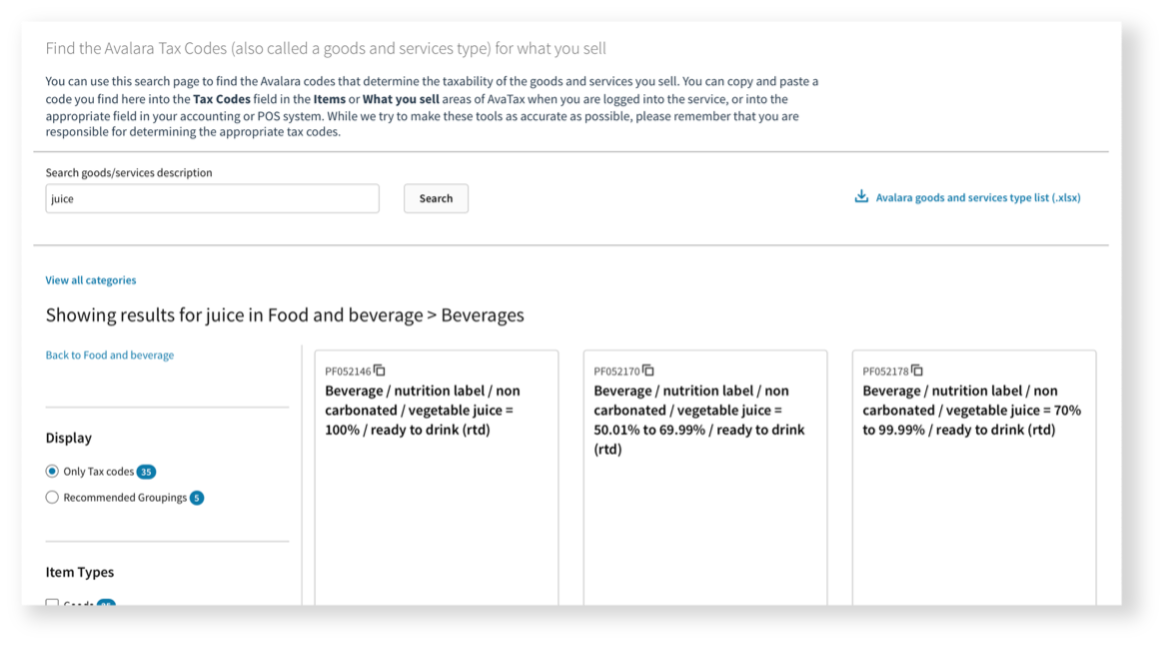
- Copy the corresponding code.
- Go to AiFi Console and find the product you want to apply the tax code to.
- Click Edit Product, paste the code into the Tax Code field, and click Submit.
From now on, AiFi and Avalara will use the designated code to calculate the correct amount of taxes for the product.
Important Note: Optionally, you can also bulk upload the tax code via the Products List Import feature.
Products list import / export
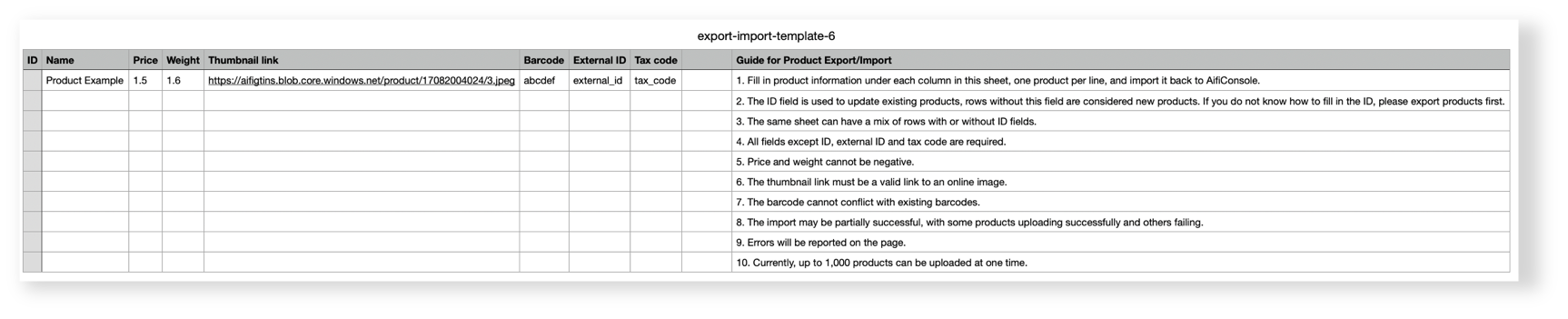
The Products section enables you to export the current product database and also import an entire product list. This feature allows adding up to 1000 different products at once.
Requirements for importing/exporting products:
- Fill in product attributes under each column in the sheet, one product per line.
- The ID field is used to update existing products. Rows without this field are considered new products. If unsure about the ID, export products first.
- The same sheet can have a mix of rows with or without ID fields.
- All fields except ID, external ID, and tax code are required.
- Price and weight can't be negative.
- The thumbnail link must be a valid link to an online image.
- The barcode can't conflict with existing barcodes.
- The import may be partially successful, with some products uploading successfully and others failing. Errors will be reported on the page.
Click on the Export / Import in the top-right corner of the Products page to proceed:
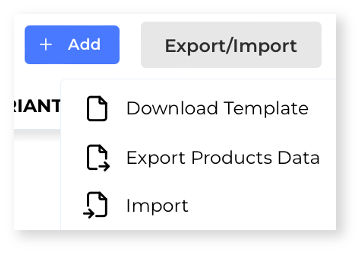
To upload the prepared file, select the Import button, choose your file, and upload. After the process completes, you can see the newly uploaded products in the Products List.
If there were discrepancies during the upload, a summary of error messages will be presented, describing the issues. Failed items won't be uploaded. Inspect the output file, address the issues, and try again. You may re-upload a CSV file with only the items that failed the initial attempt.
It's your responsibility to provide correct product images that are used by our system to recognize products in stores. On an individual product level, an image can be added using the AiFi Operations App. When it comes to adding products through bulk upload, the URLs must be included already in the uploaded file.